Windows Server Migration 2016 to windows server 2019.
https://www.querypanel.com/wins-migration/

Migration to Windows Server 2016 to 2019, including applications, profiles, shares and data.
Step-by-Step Guide: Active Directory Migration from Windows Server 2016 to Windows Server 2019
How to migrate Windows Server Essentials 2016 to Windows Server 2019 Standard, Datacenter or Essentials
Add Windows server 2019 to the existing domain as member
Log in to the Server 2019 as a member of local administrators group and join your server to domain. After restart, log in to the server as Enterprise Administrator.
Here I am Having 2016 DC Server.


FSMO COUNTROLS Authority
netdom query fsmo

Migration user domain authorization — no need to create another user– use administrator
so, here i have created a user migration with enough authority


D:

Cd support


Cd adprep
dir

Adprep.exe /forestprep
And type c
(c for continue)


adprep.exe /domainprep


Set up a new server using Windows Server 2019
The first step is to install Windows Server 2019 on a new physical device or virtual machine. If you are more technically experienced with Windows Server, you could choose to install Server Core and then perform the necessary steps using PowerShell or by remotely connecting to the new server using Server Manager or Windows Admin Center. Otherwise, install Windows Server with the Desktop Experience role enabled.
Install the Active Directory Domain Services role
Wait for the server to reboot and then sign in with a domain admin account. You can then install the Active Directory Domain Services (AD DS) server role using Server Manager and the Add Roles and Features wizard in the Manage menu. You can also use the following PowerShell command:
Install-WindowsFeature -Name AD-Domain-Services -IncludeManagementTools
Promote the new server to a domain controller
When the AD DS server role has been installed, you’ll get a notification in Server Manager prompting you to promote the server to a domain controller. Clicking the yellow exclamation mark icon will launch the AD DS configuration wizard. You should choose to ‘Add a domain controller to an existing domain’ and follow through the on-screen instructions. And providing that you are signed in with a domain admin account, adprep will automatically prepare your existing domain.
So, after installation of 2019 server need to install Active directory click to join existing domain.
Login from authorize account


so, now available 2 DC


DC 2


DC 1

Uncheck

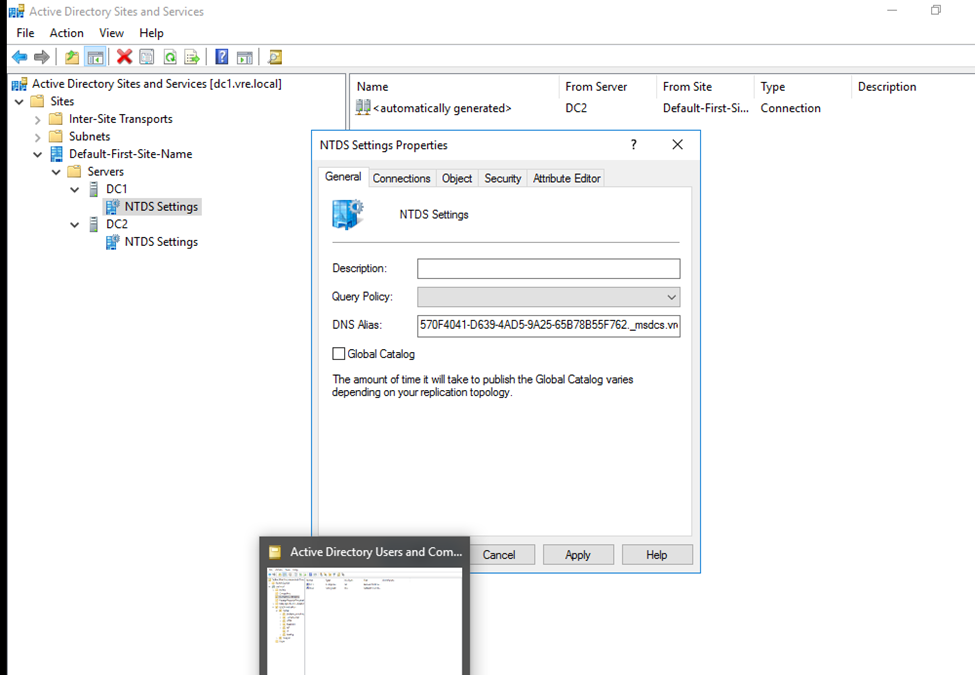

Now DC 1

Transfer FSMO Roles to DC2
Open Powershell
ntdsutil
And press
Enter


Roles
Connections
Connect to server dc2


quit


FSMO Roles


Comments
Post a Comment