Exchange Server

Step by Step Guide for Installing Exchange Server 2019
Exchange 2019 prerequisites
Domain Controller Support
The following Active Directory writable Domain Controller(s) are supported;
- Windows Server 2012 R2
- Windows Server 2016 (Core and Desktop Experience)
- Windows Server 2019 preview (Core and Desktop Experience)
Operating System Support
- Windows Server 2016 (Core and Desktop Experience)
- Windows Server 2019 preview (Core and Desktop Experience)
.Net Framework Support
- .NET Framework 4.7.1 or above (Windows Server 2016)
- .NET Framework 4.7.2 (comes default with Windows Server 2019 preview)
Other requirements
- Visual C++ Redistributable Packages for Visual Studio 2013
- Unified Communications Managed API (UCMA) 4.0
- Latest Windows Server updates
Active Directory preparation
The first task in the installation of any version of Exchange is to prepare the Active Directory environment where the Exchange Server will be placed. However, prior to the preparation, it should be checked against the above Domain Controller support prerequisites mentioned earlier. Once the above requirements are verified for consistency, proceed with the following preparation tasks on the server/computer which will be used to prepare the Active Directory.
We will be using the Exchange Server itself to prepare the Active Directory.
Office 365 Exchange Server
Exchange Server 2019
Exchange server pc should be connected to Domain Controller with Domain Controller user with required permission.
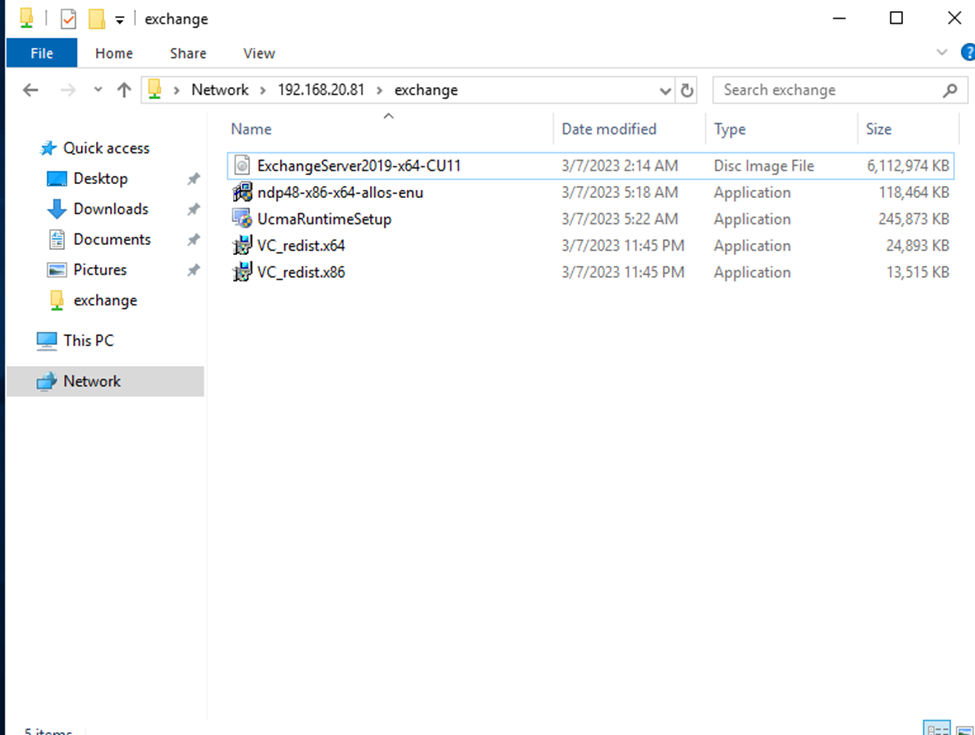
Before starting installation exchange server, we need to aware about the pre requisites.
.NET Framework 4.7 or later
Unified Communications Managed API 4.0
Visual C++ 2013 or 2012
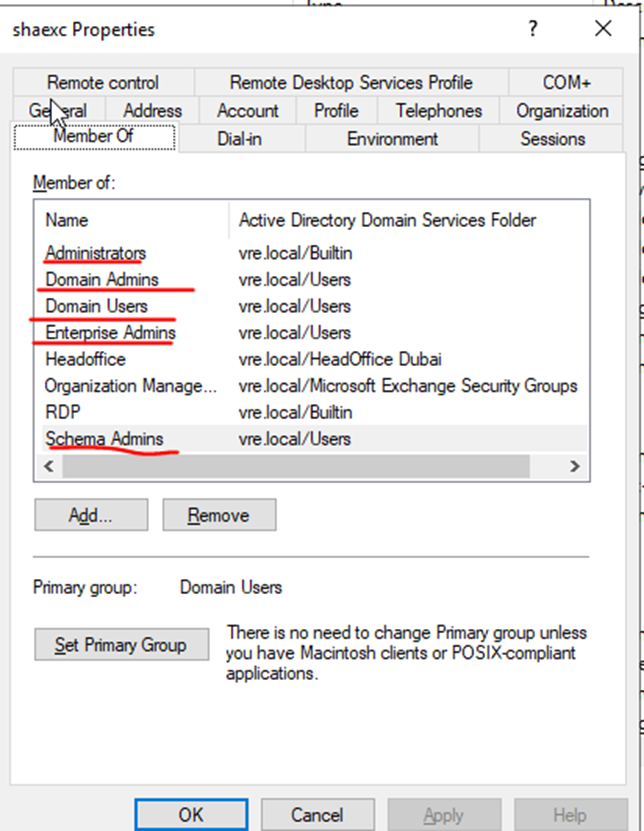
Required Permission right to Exchange Admin User:
Administrators
Domain Admins
Domain Users
Enterprise Admins
Schema Admins
pre requisites Software
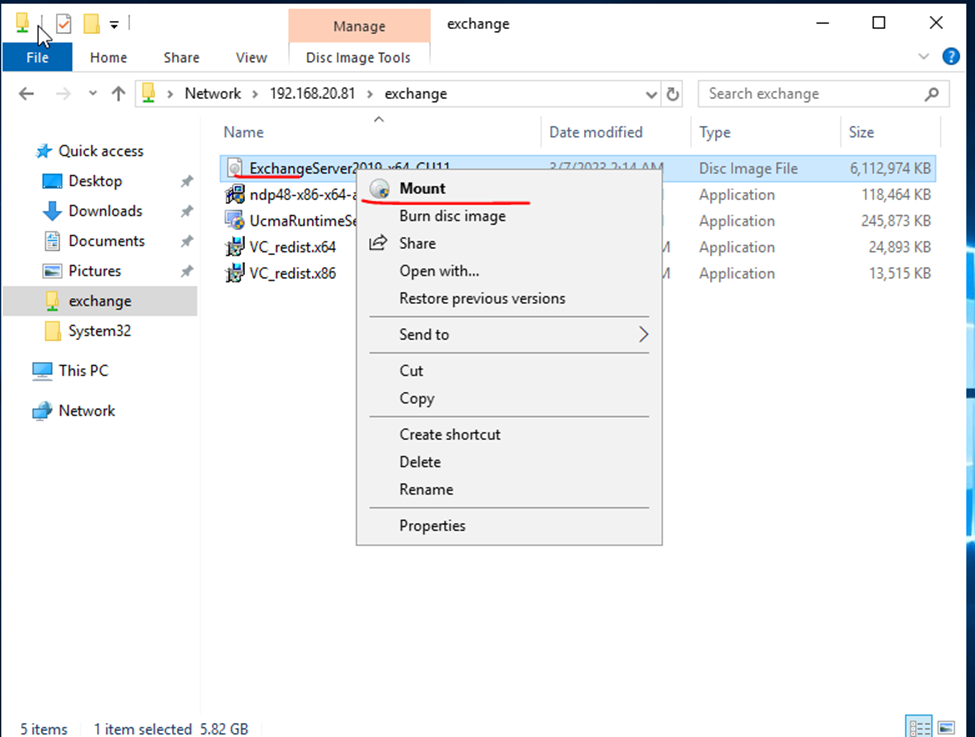
Mount the disk
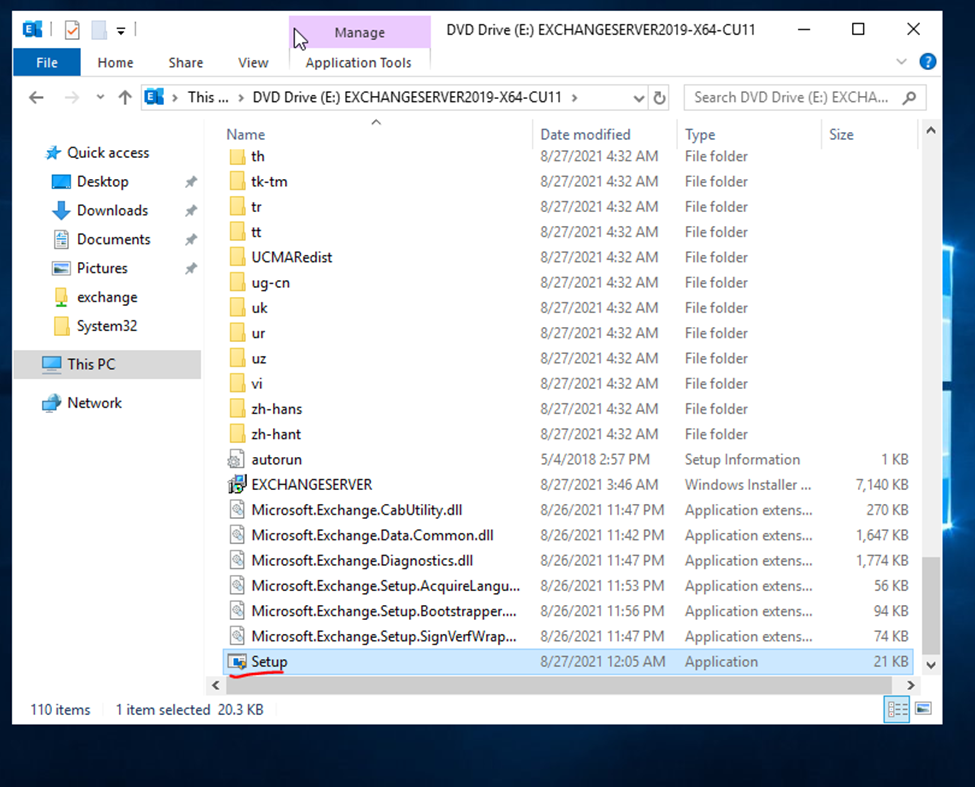
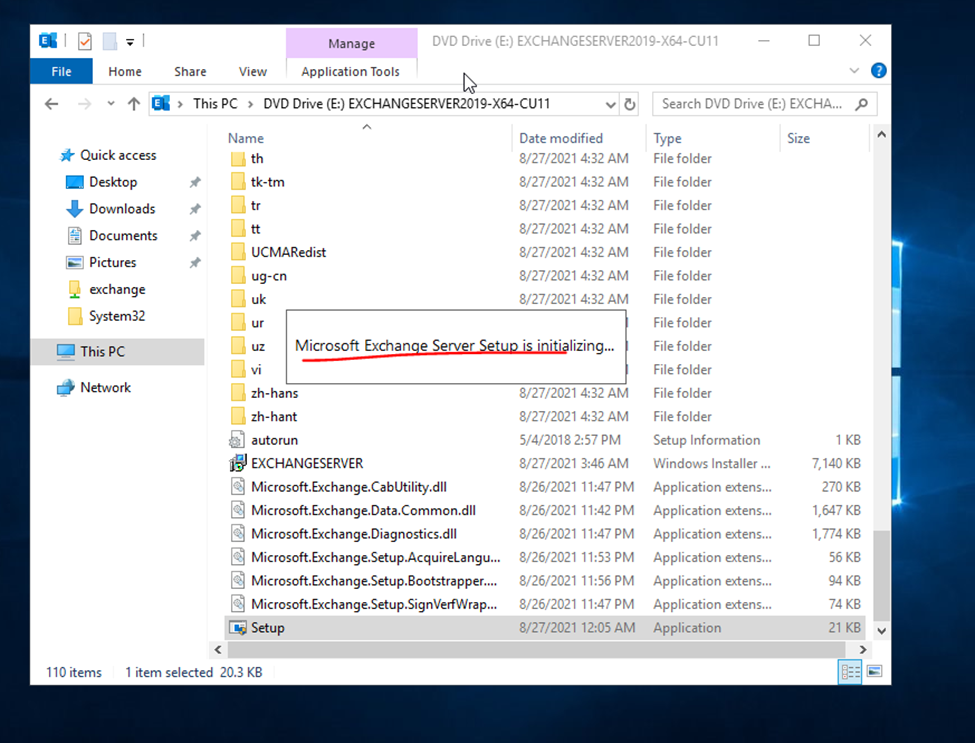
click to run setup file
launching exchange installation
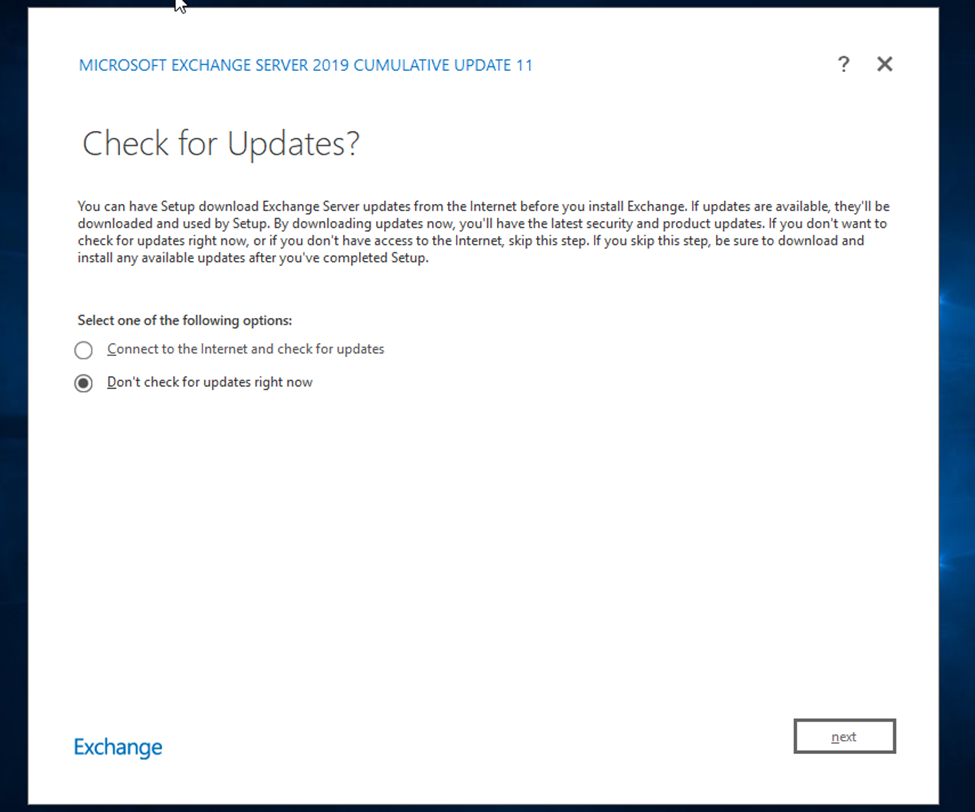
If you looking for latest update select update option otherwise next option
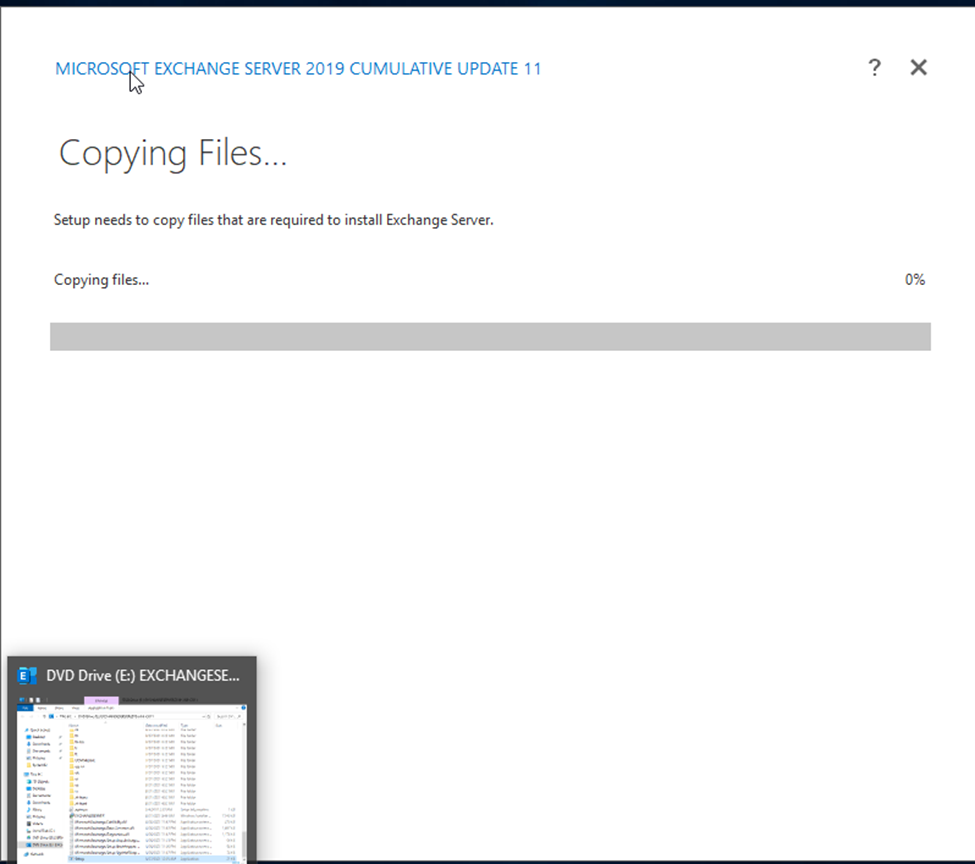
click to next
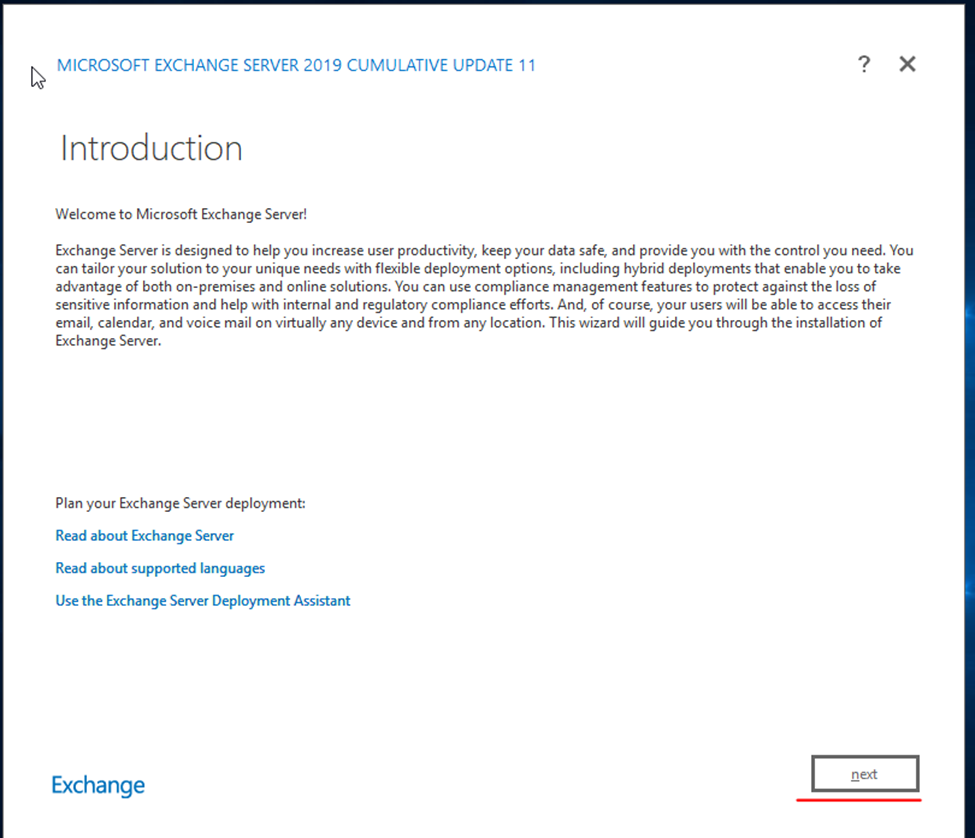
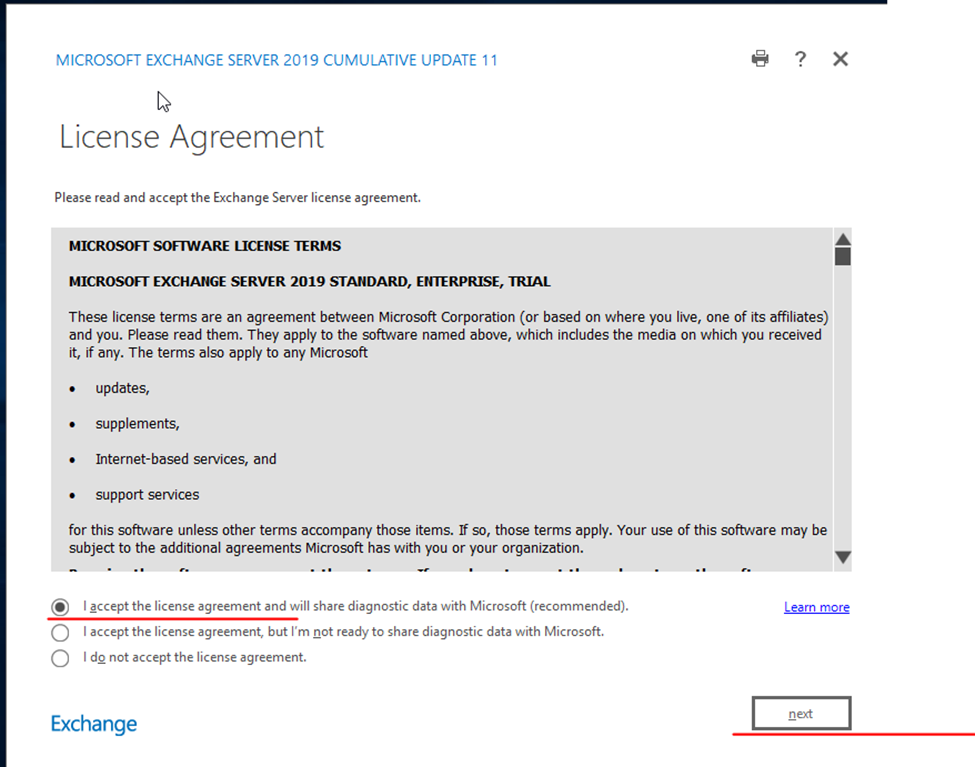
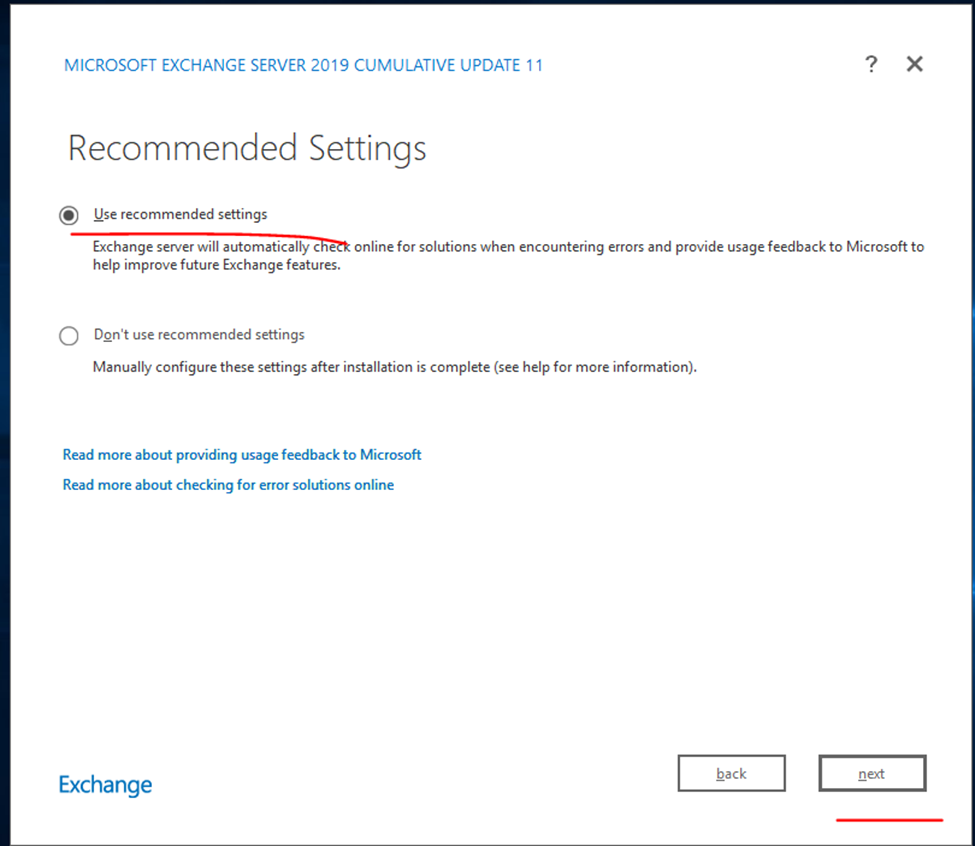
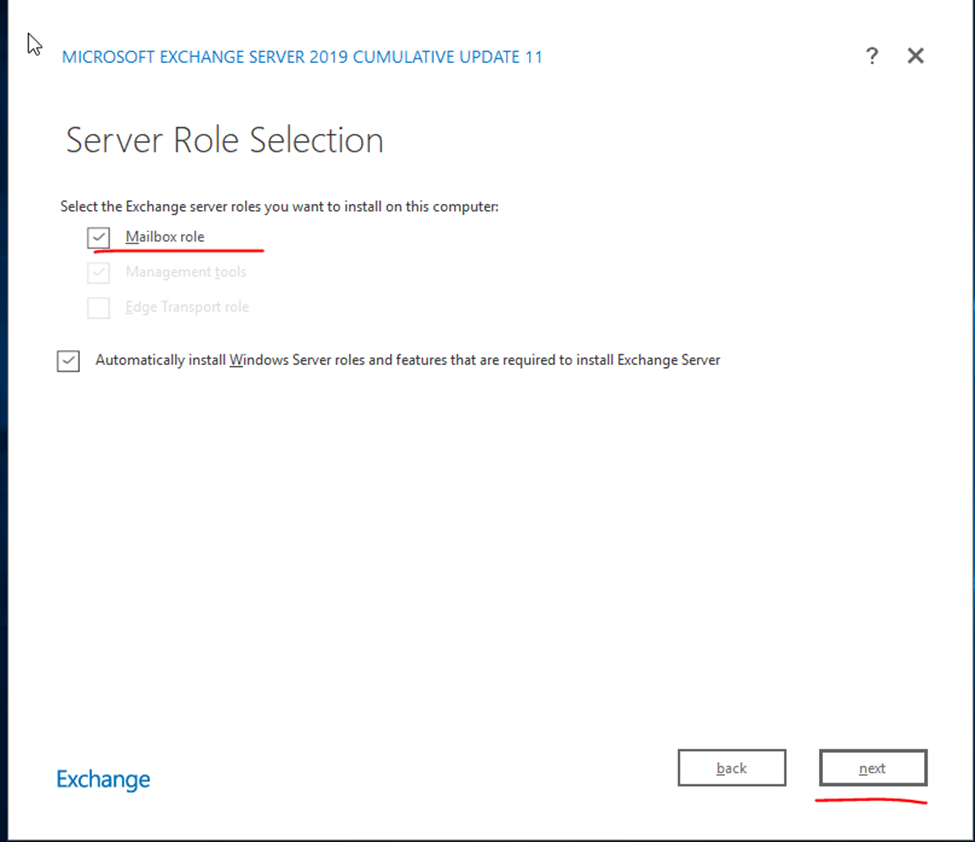
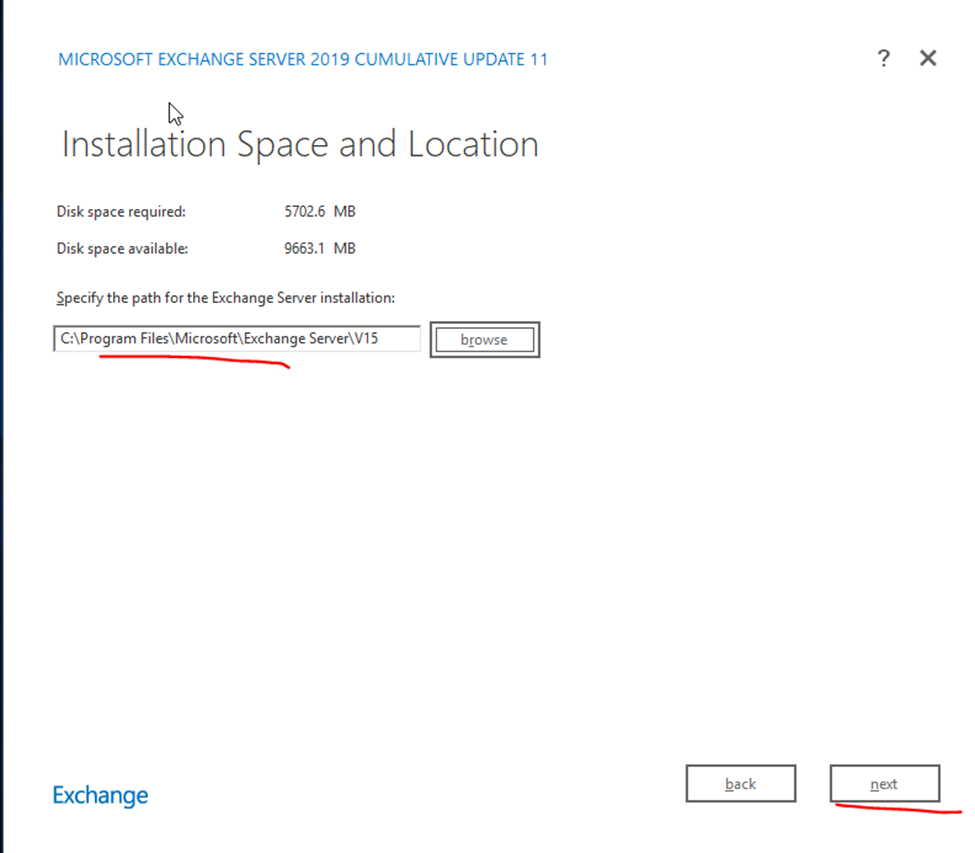
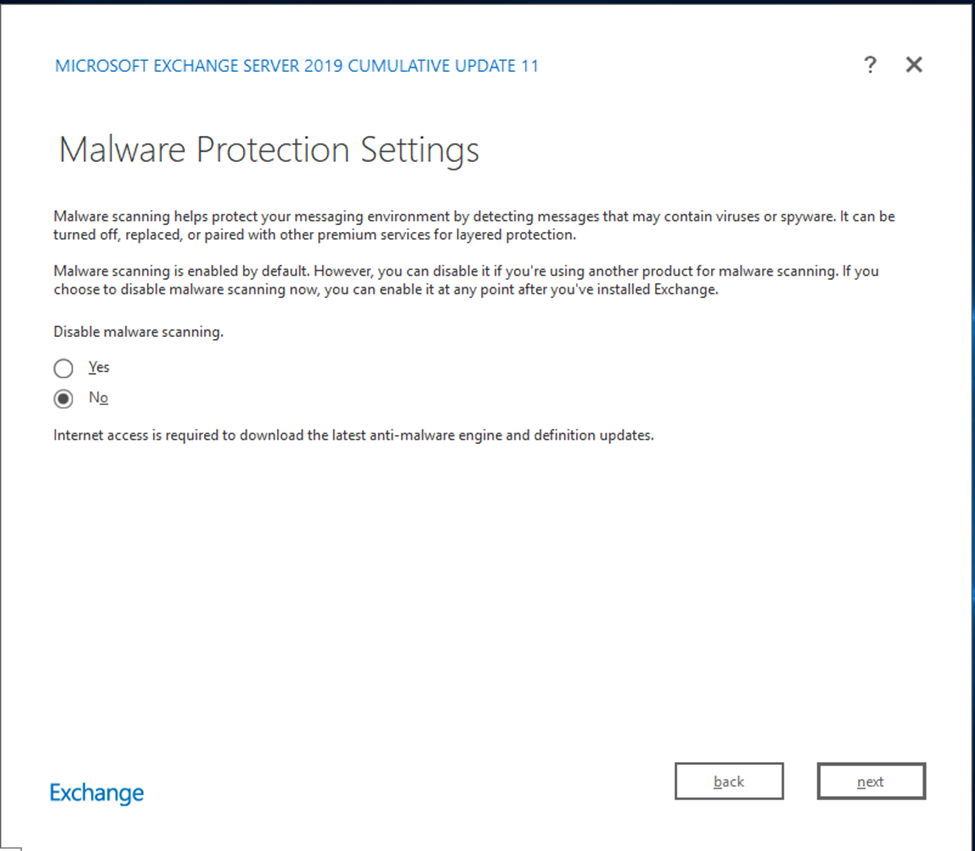
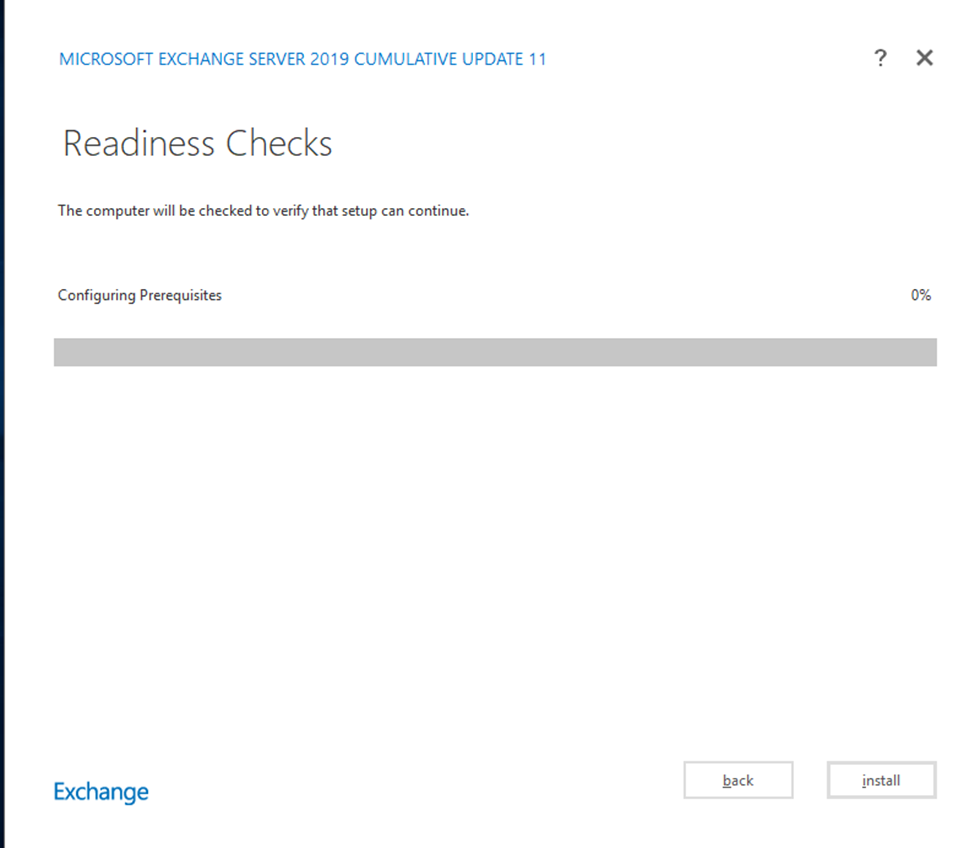
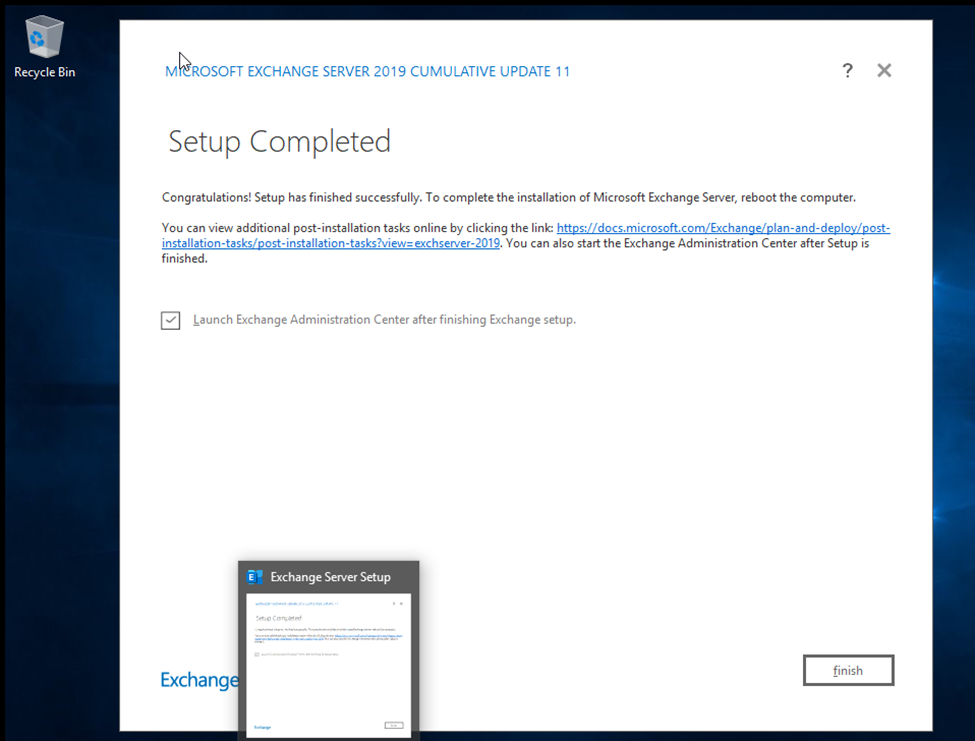
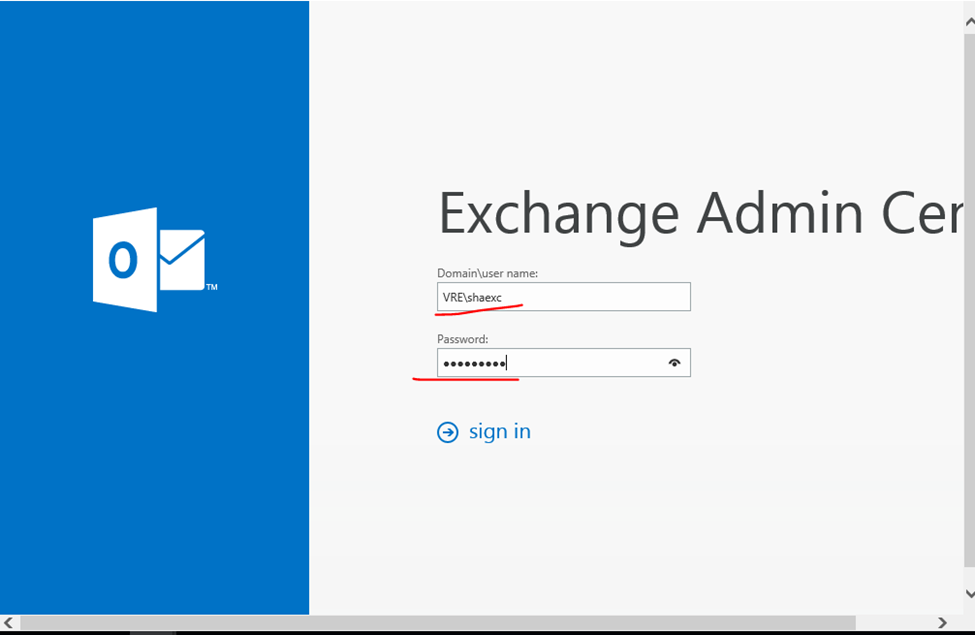
So default user will be account user and password
In my scenario
Default user: shaexc (active directory user)
And password will be same as you login to server.
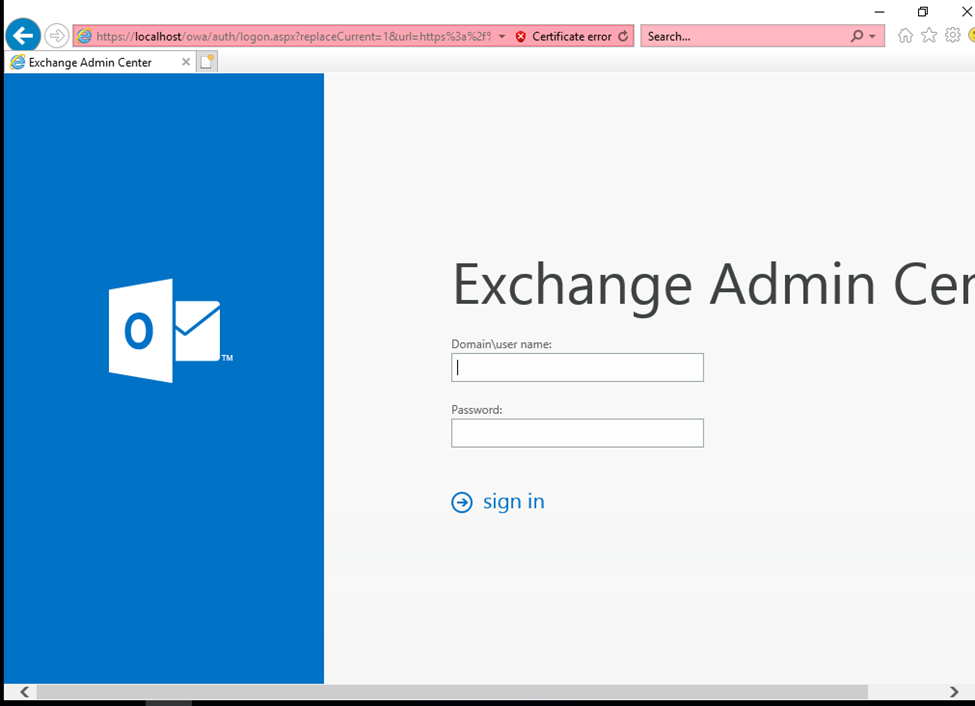
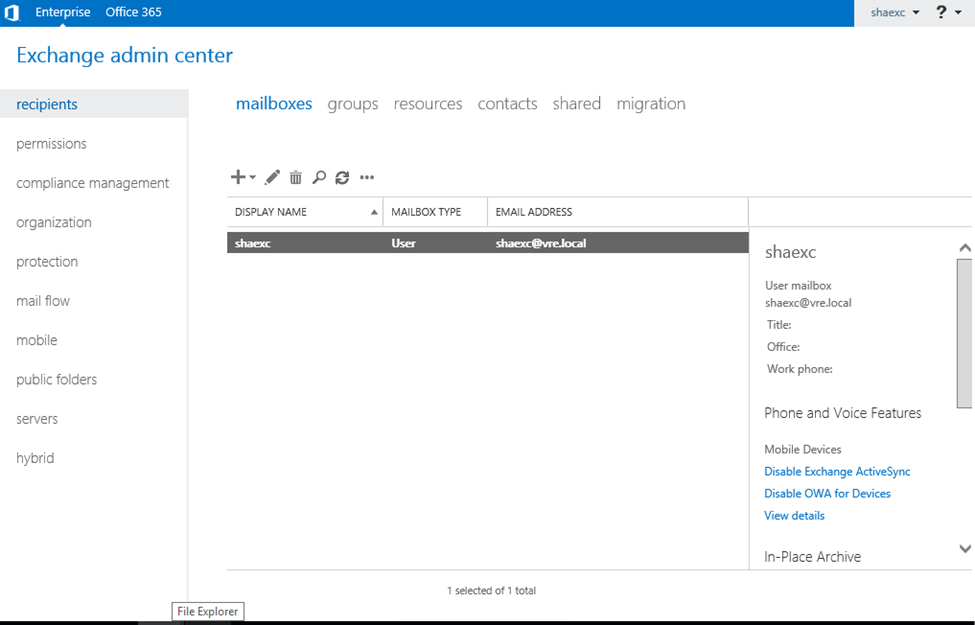
Create new user non exiting AD.
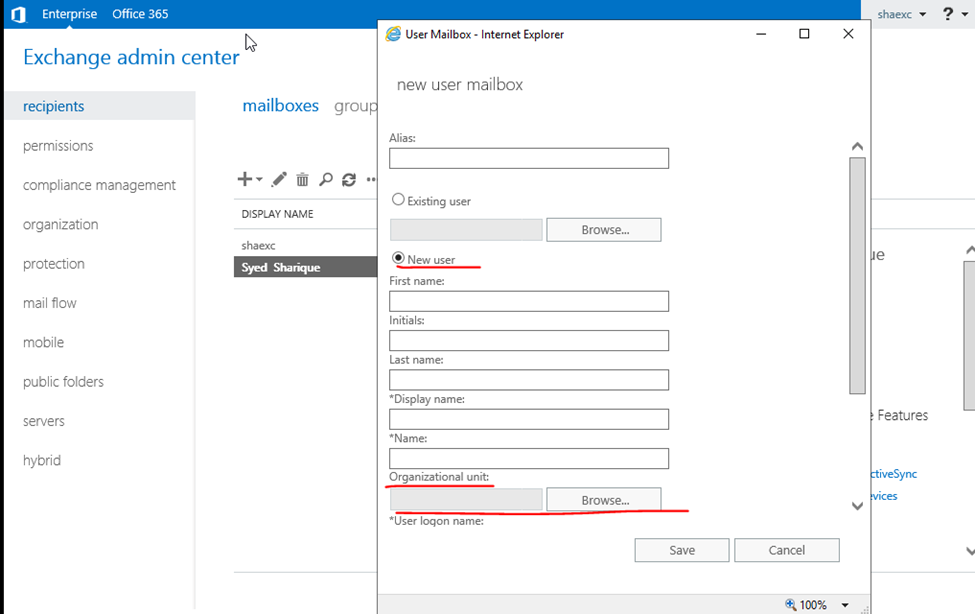
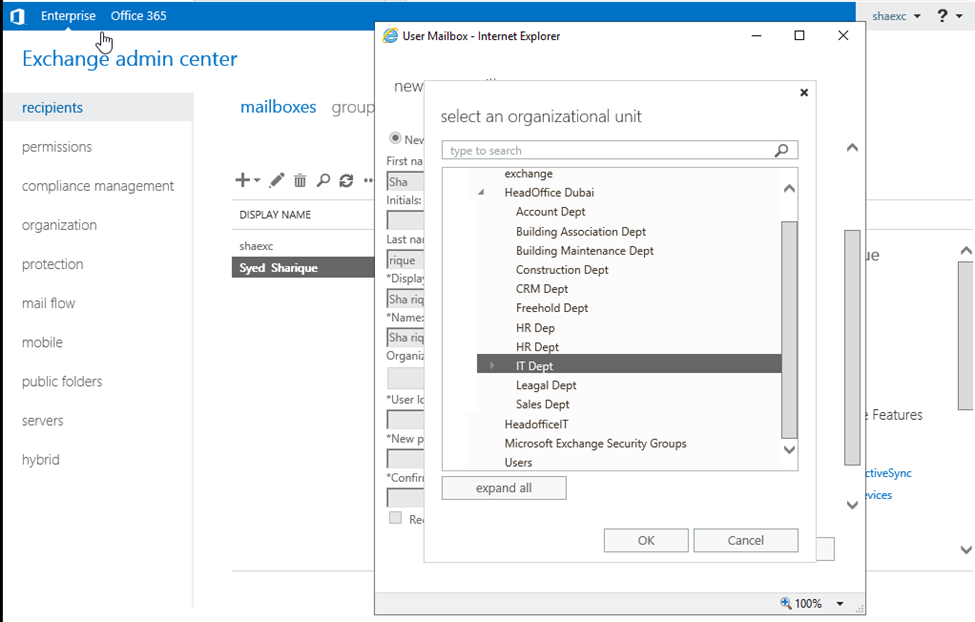
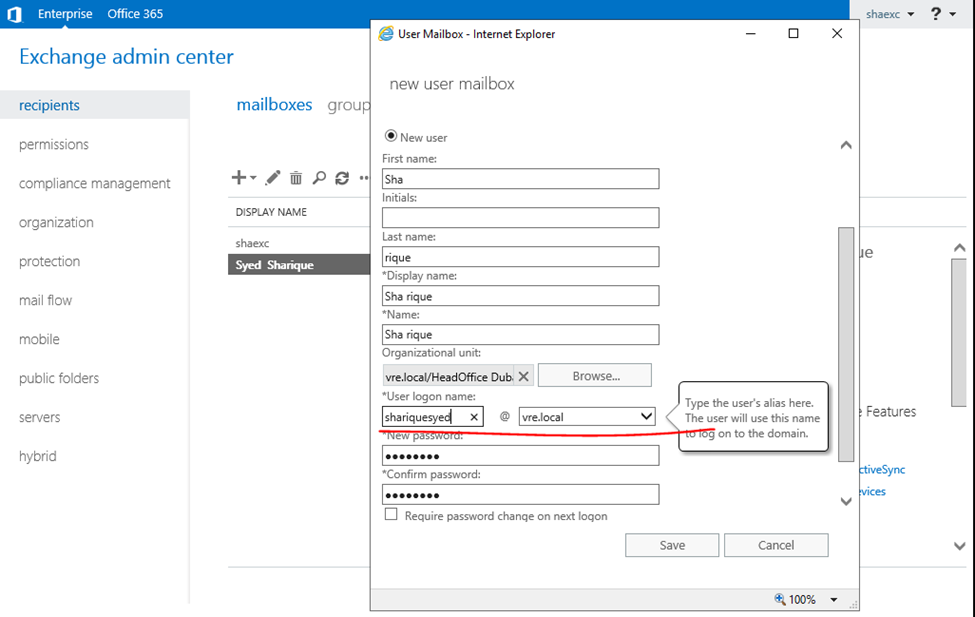
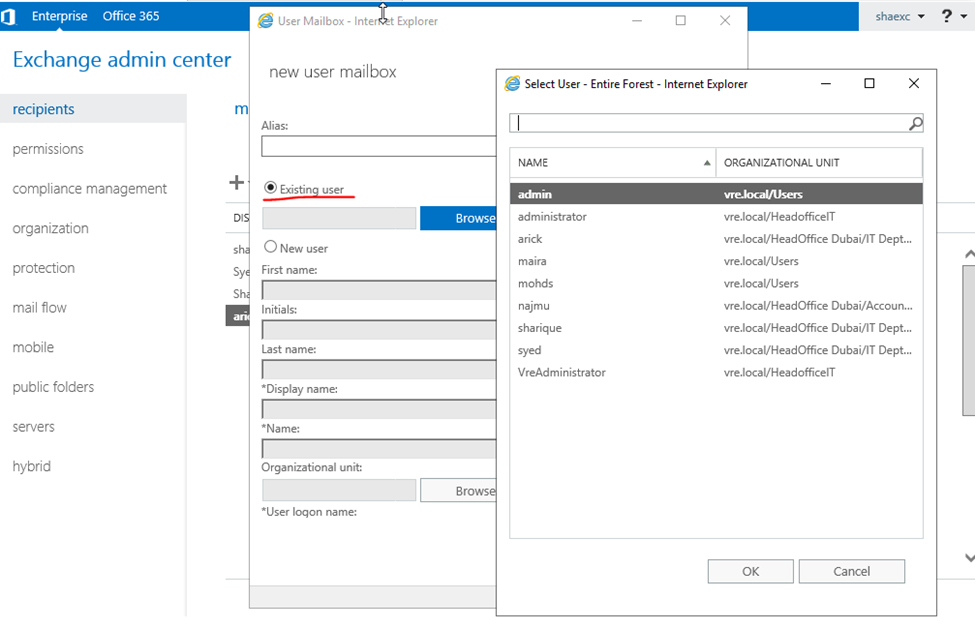
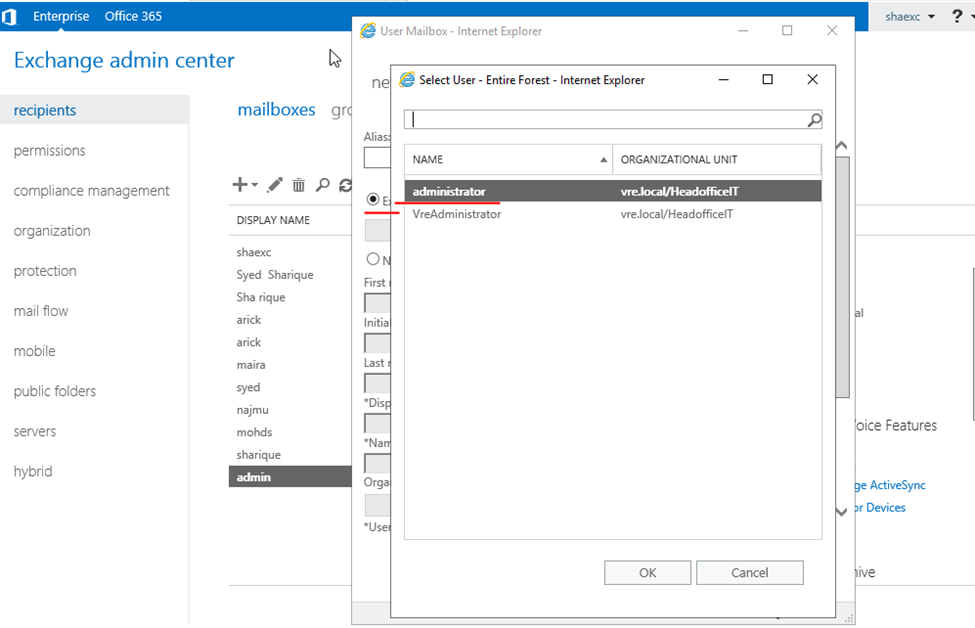
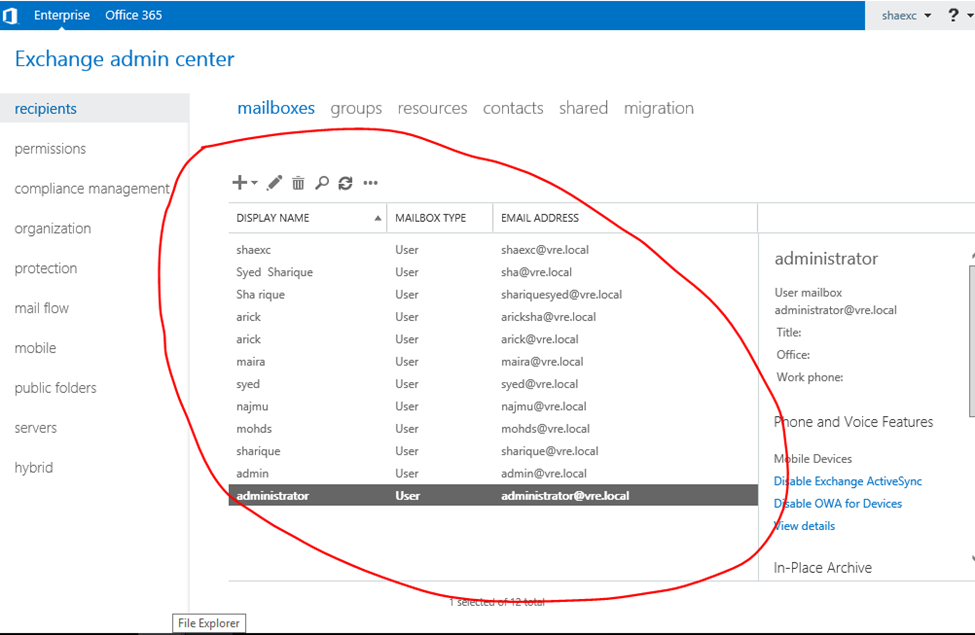
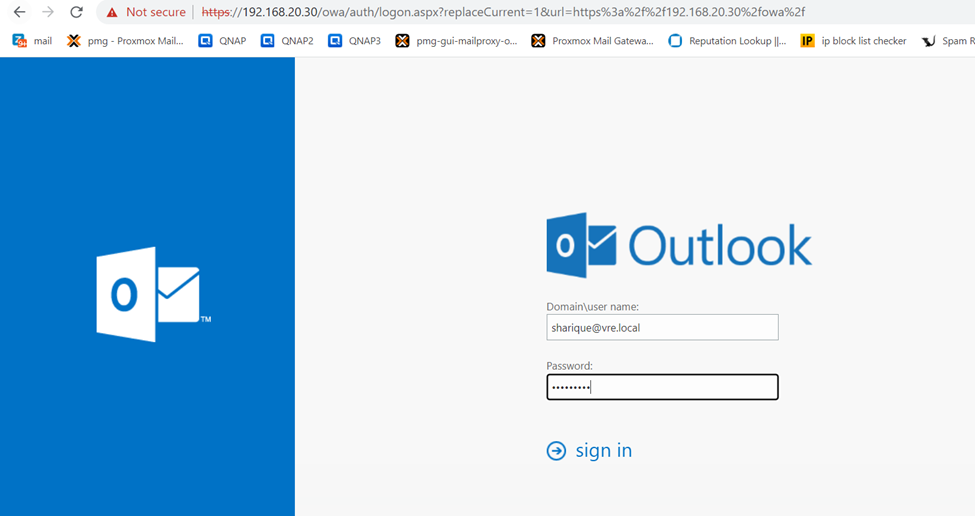
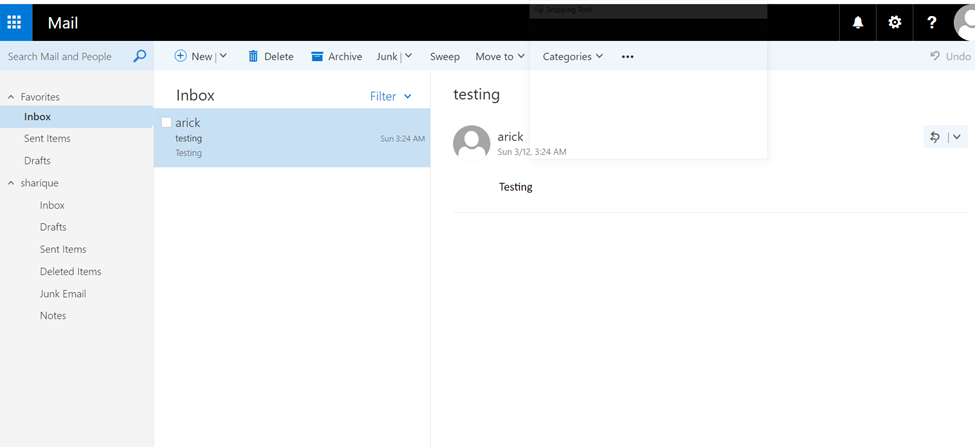
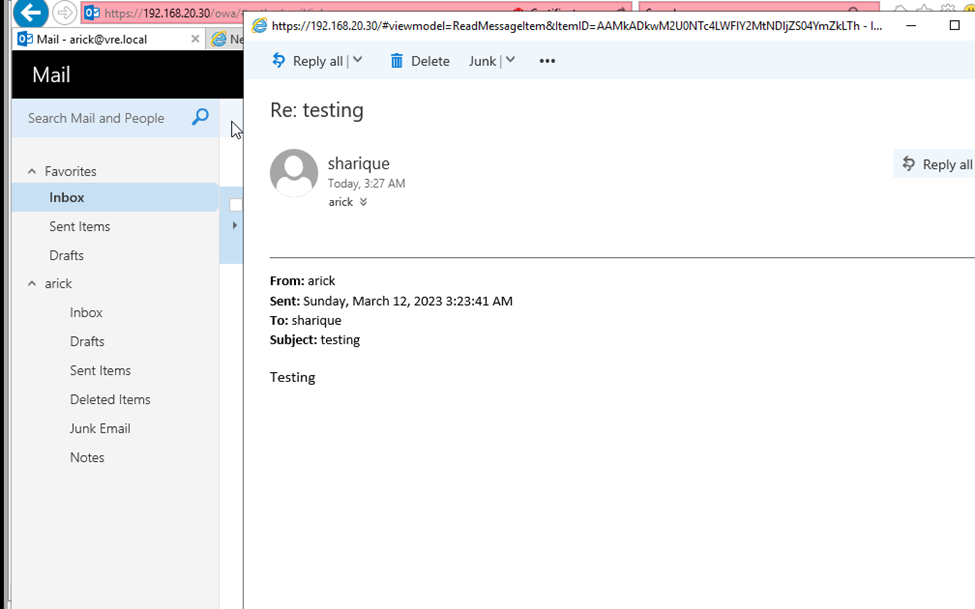
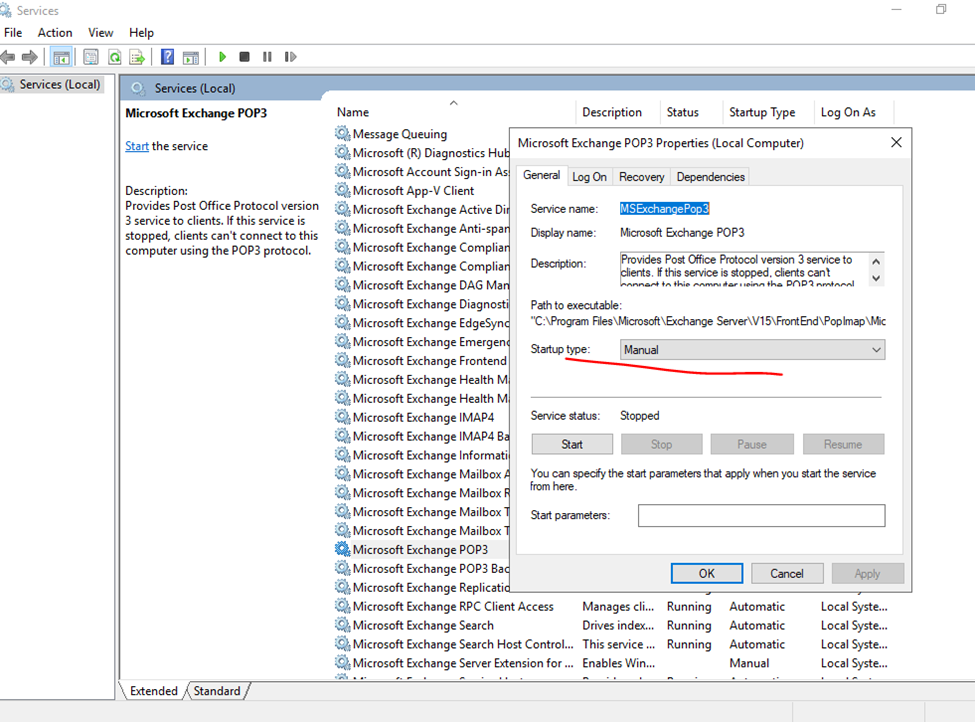
By default, it’s manual
Make it manual to automatic
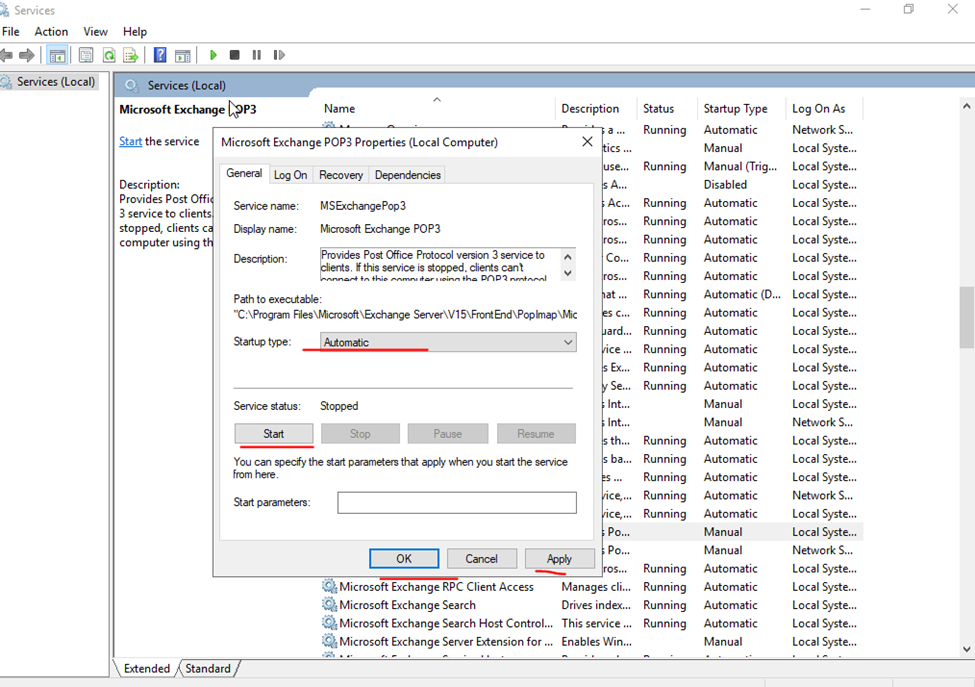
IMAP
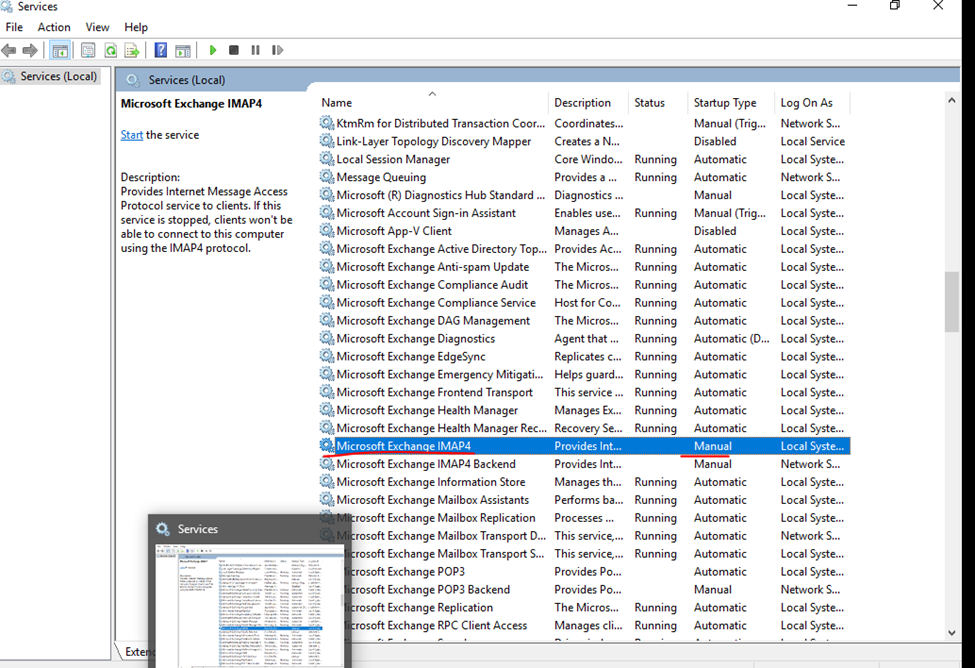
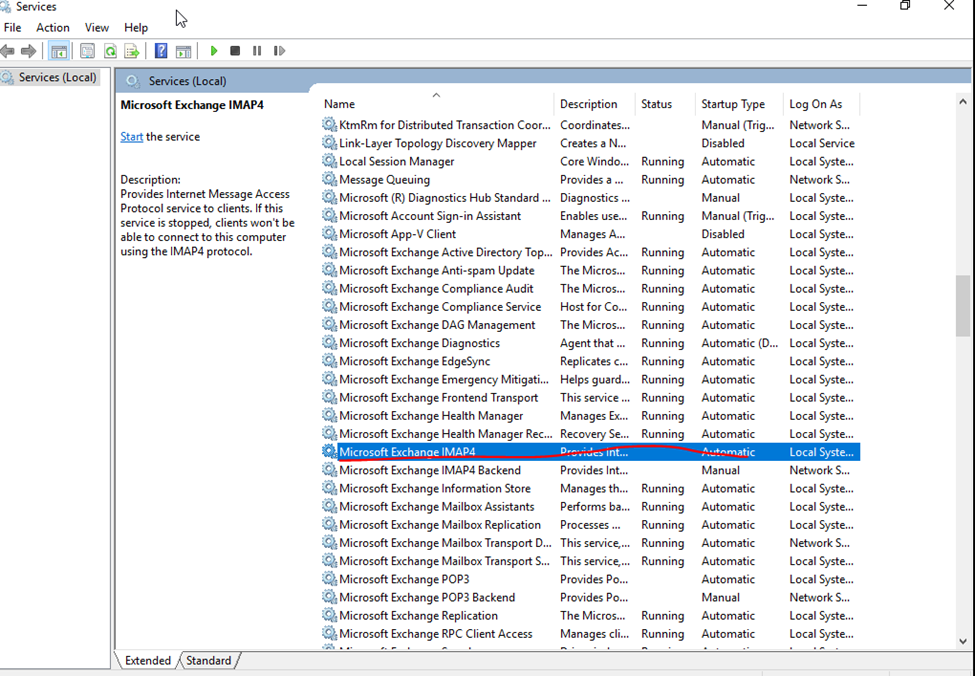
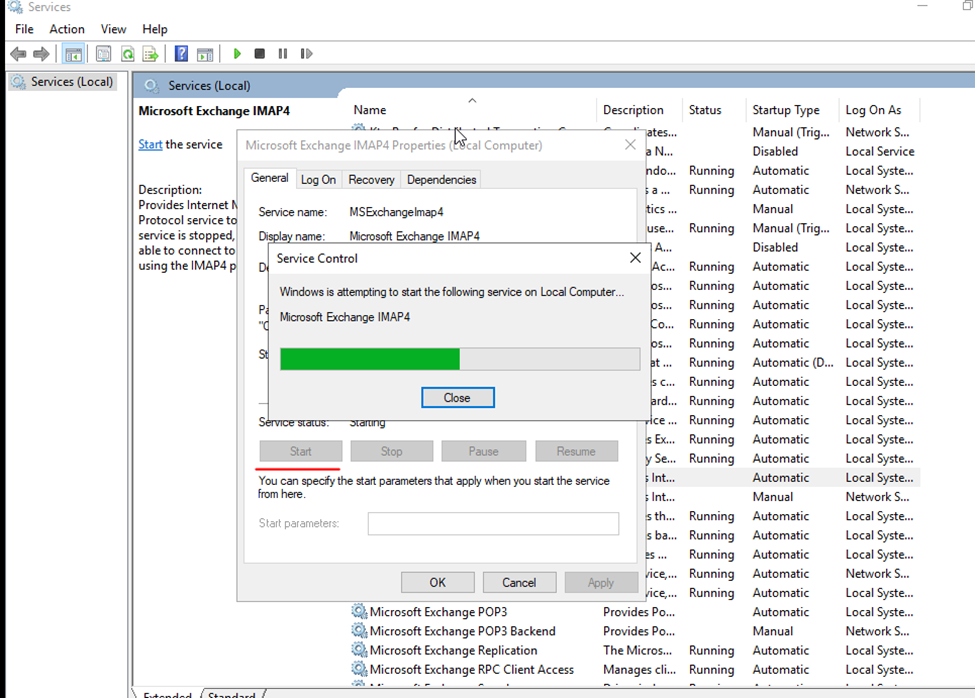
Here Configuring POP Services
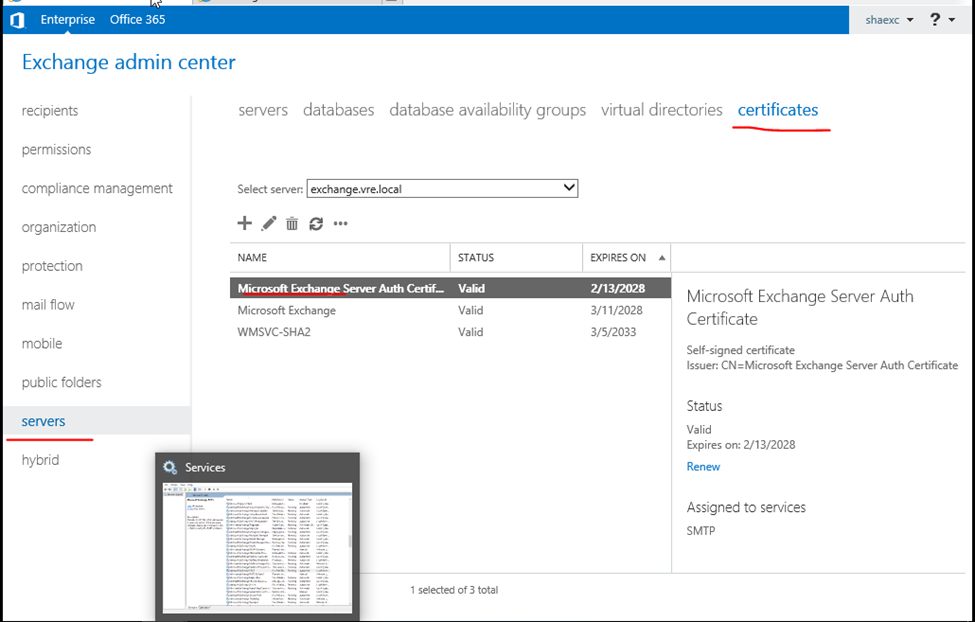
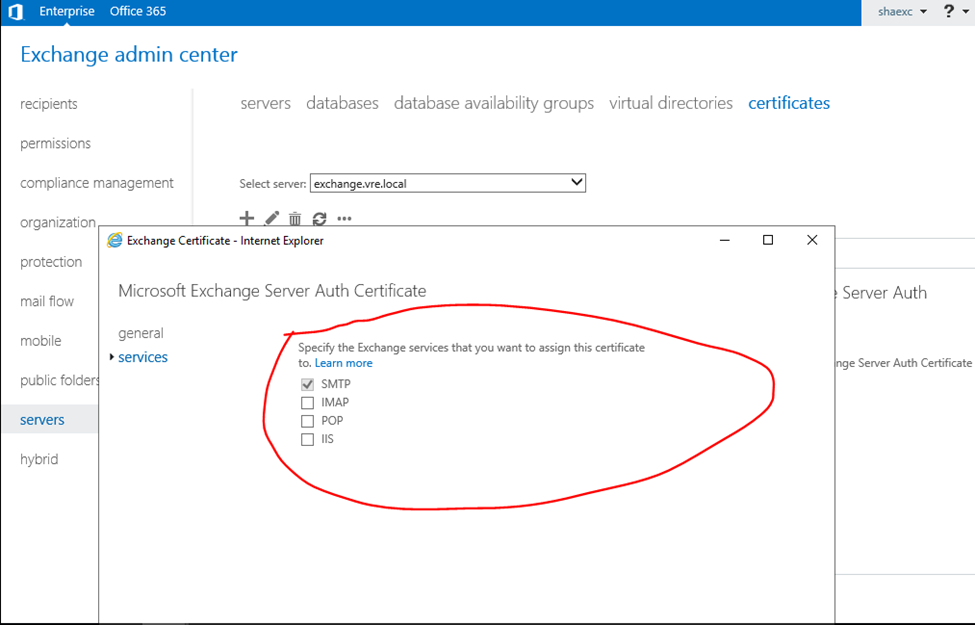
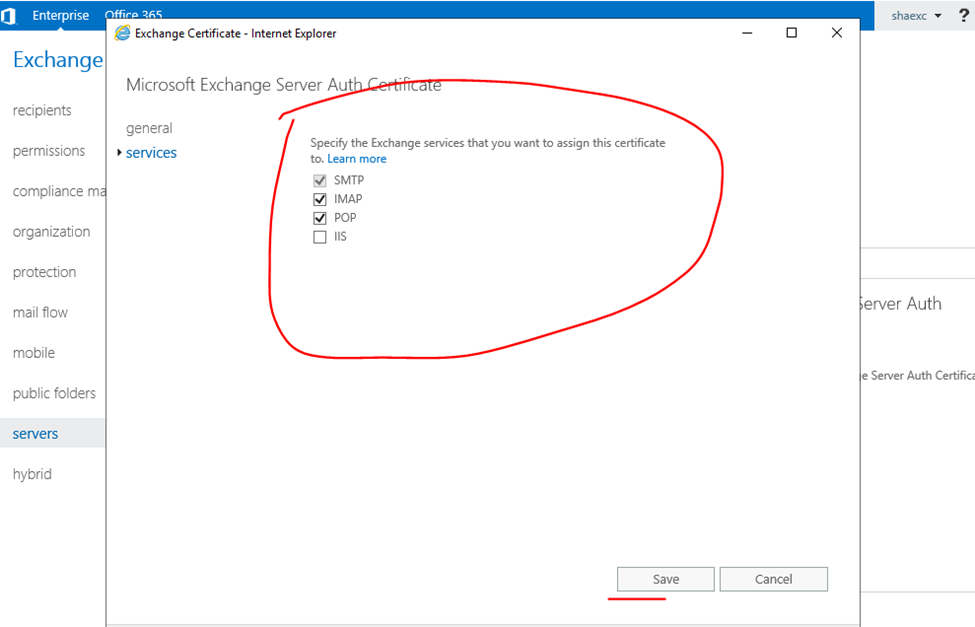
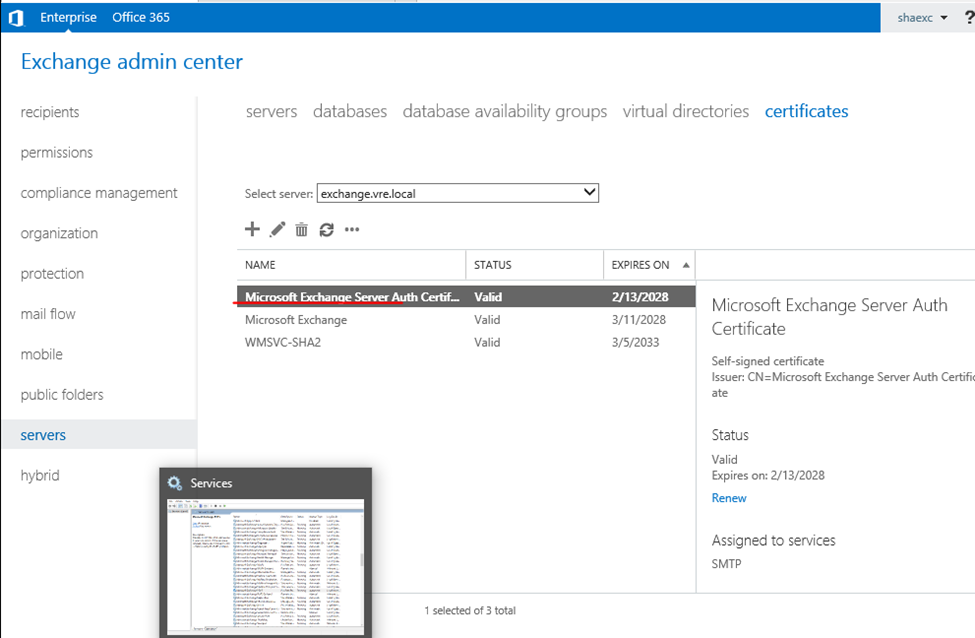
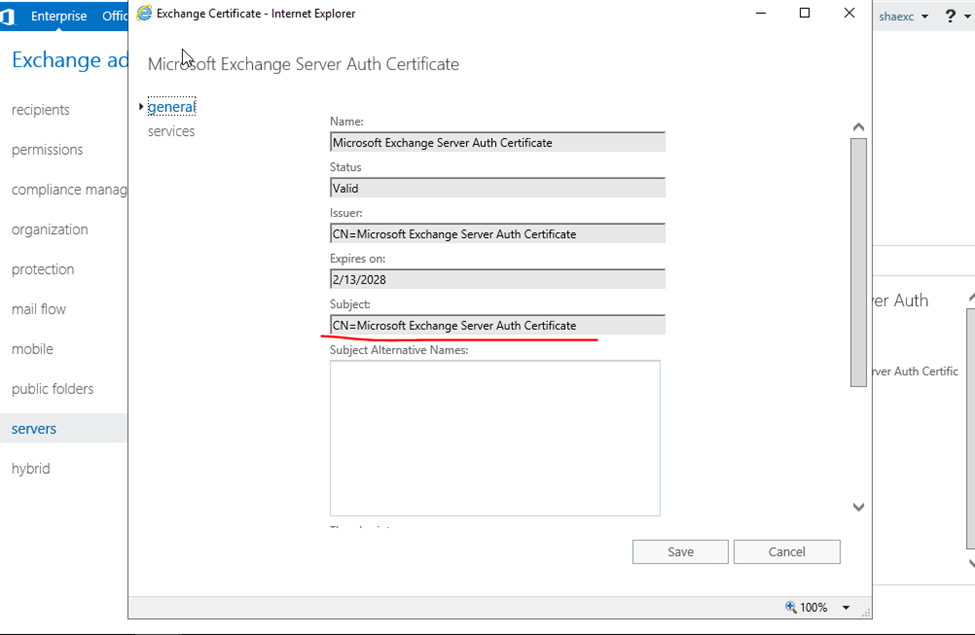
START Exchange server PowerShell
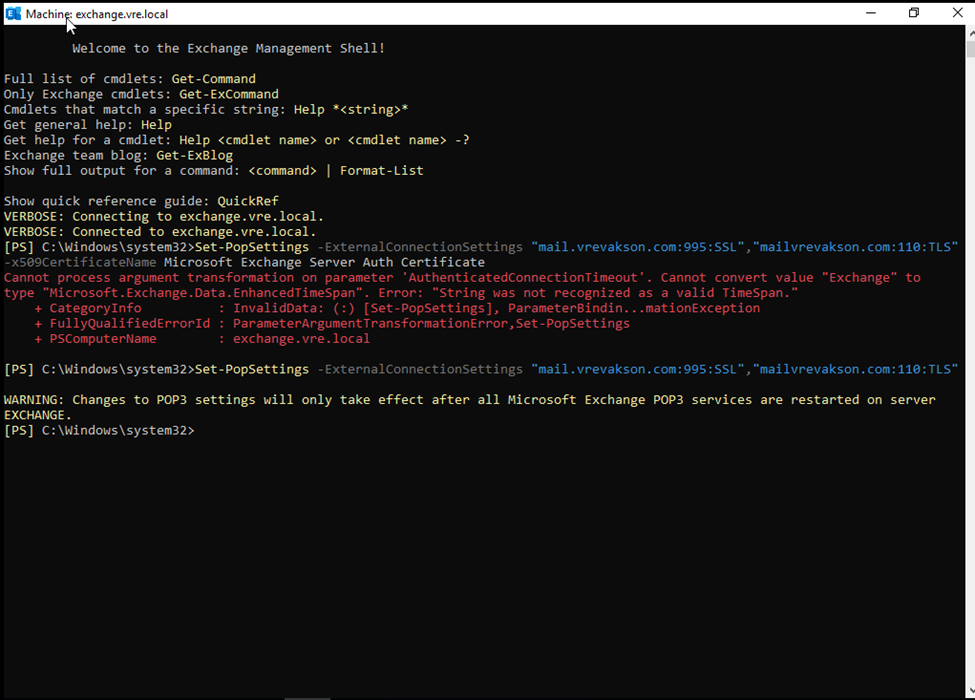
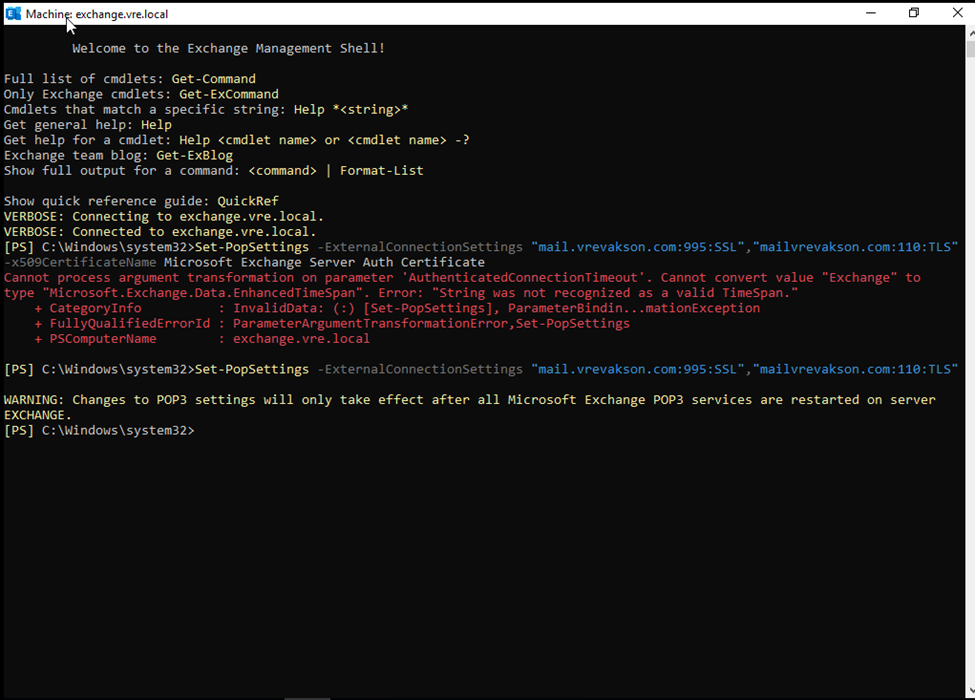
Pop port
995/110
Type and enter cmd
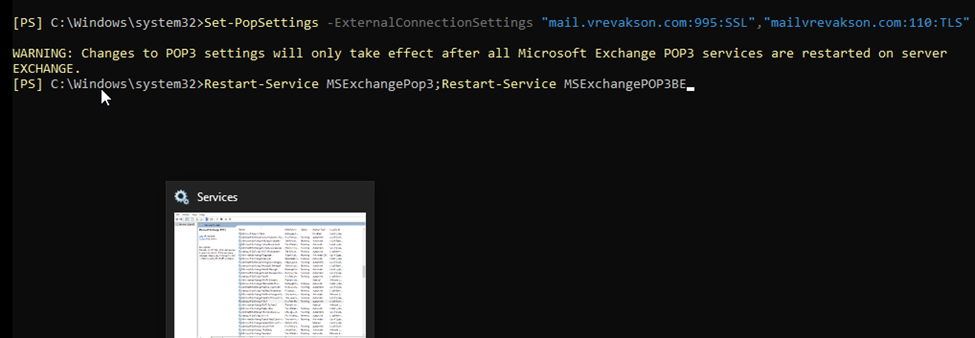
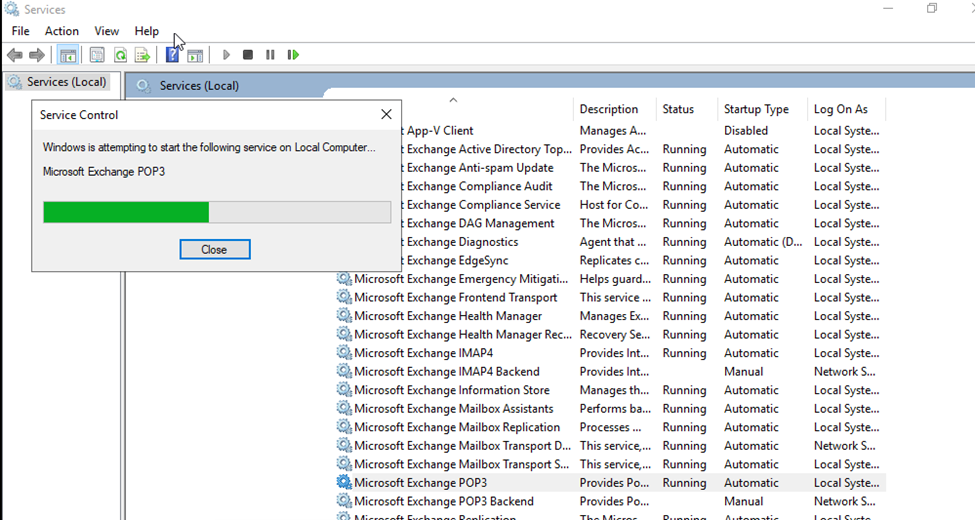
Or restart from services
IMAP
PORT 993/143


Restart from here or from cmd
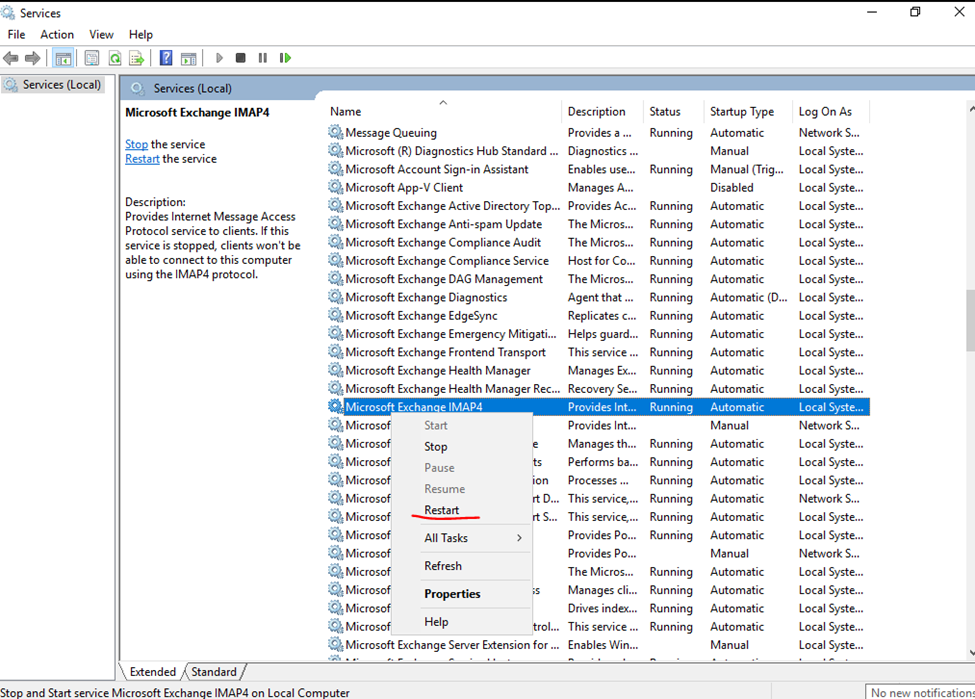
Once configuration done.
Allow ports to Router.
995, 110 – POP3
993, 143 – IMAP4
So, ports open.
SMTP Settings pop and imap clients.
Comments
Post a Comment