Additional DC

Backup DC (Additional Domain CONTROLLER)
\\\
Backup Domain Controller or Secondary Domain Controller
///
Steps:
Assign Static IP address
Change name Server
Install Wins Server with Same existing Version
Join to Domain Controller
Go to Server Manager
Click to Add feature and Install
Active Directory Domain Services
DHCP Server
And DNS Server
Required
And don’t need to uncheck any default Installation
Once Installation Done Click to Permote DC
And Select Existing DC and type administrator account name and Password
Once installation done
Go to Active Directory Sites and services
Click to Default first site name expand
Right Click to NTDS Setting select All Taks then Check Replication Topology
Once done click to Replicate now
You will get successfully popup message
These things have to done in both Primary and Secondary DC
Once both Primary and secondary DC replicated if we create or implemented any things even any Primary or Secondary both will get the result
NOTE: Both Server Machine IP Have to Different not Same IP.
So,
In any-case Primary DC is Down need to assign active Secondary DC with Full Privileges
Need to Seize FSMO 5 Roles from Primary DC(FSMO having 5 roles)
FSMO Categories in two shapes –- Divided into two Categories
Forest Level
—— Schema Master
—— Domain Naming Master
And
Domain Level
—— Domain Level
—— RID Master
—— PDC emulator
So,
I need to seize the FSMO 5 roles form Primary DC and assign to Secondary DC
Open – PowerShell
Type commands
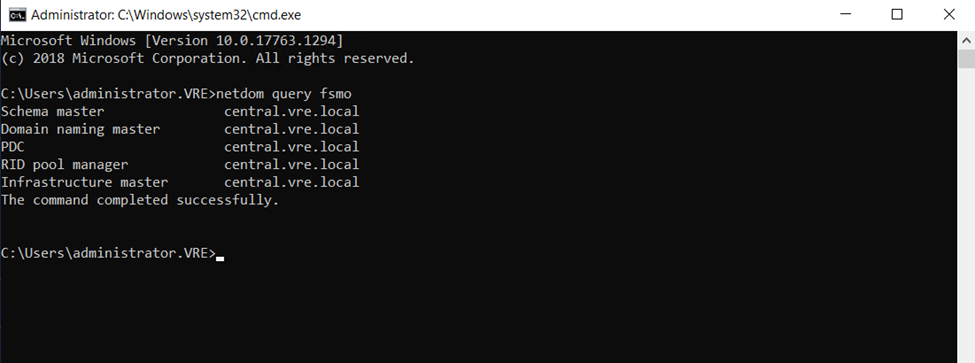
First need to check the FSMO roles currently running
Netdom fsmo query
- You will see 5 FSMO roles will be display
Now type
Ntdsutil
And now
Question mark
? and press enter key
Select maintenance
Once maintenance then
Again, question mars
? and hit enter
So, now
Once roles are displaying type
Type like this cmds
Seize infracture master to all 5 FSMO roles
Install wins Server Change Name and assign Static IP Address
Primary DC IP is 192.168.20.4

Changing Default PC name press okay once done Server will be reboot

now this pc is connected to the particular domain environment.

So, after joining

open Server Manager and install Active Directory
So, now select Backup server
And click next

Select
Active Directory Domain Services
DHCP Server
DNS Server
And click next

And left or make as default click to next

Now click to install these selected features and check the restart the destination if required

once Installation done click to promote Domain Controller
So, need to configure it

Now click to promote this do domain controller

Or click to popup red flag bar promote from there also..

Select existing DC
And
Change the user perform credentials enter only Primary DC Administrator username and Password
And click next

Now type restore mode password
why we need to Select DSRM?
BECAUSE if there is any issues generated to Domain Controller or Backup DC, DSRM always keeping one Server Images stored separately.
if this method required need to start Server as safe mode
Click next

after Directory Service Restore Mode set the password Click next

Select the primary domain
Click next

Here, database, log and sysvol directory structure
Complete Active directory Database store here.
NTDS.DIT DATABASE — NTDS is the Active Directory DATABASE – All user and computer Accounts and groups
you can say NTDS.DIT is the Backbone of any ADDS.
Ntds.dit is the main AD database file. NTDS stands for NT Directory Services. The DIT stands for Directory Information Tree.
The Ntds.dit file on a particular domain controller contains all naming contexts hosted by that domain controller, including the Configuration and Schema naming contexts.
A Global Catalog server stores the partial naming context replicas in the Ntds.dit right along with the full Domain naming context for its domain.
Command for checking NTDS details: ntdsutil
NTDS.DIT file represents the Active Directory Databases, which has the user, computer, and other AD objects including printer and faxes . It is located under C:windowssystem32NTDS.
LDAP (Lightweight Directory Access Protocol).
in the Simple Language you can say LDAP is a medium to communicate to ADDS
LDAP protocol is used for accessing directory services and provides a mechanism for applications and other systems to communicate and
interact with the directory servers. It is responsible for keeping track of what is on the network and applications can use LDAP to retrieve
any object and property of the Active Directory database and can even modify it. When we enumerate information from AD, LDAP is used in the backend.
Not only this, LDAP also allows us to modify objects, like modifying groups members, changing attributes of an object.
Many enumeration tools have used LDAP to query the information from AD- for example Powerview or Sharpound etc. Anyone who is working with active directory like administrators,
red team operators, or developers writing programs to interact with AD, then a thorough understanding of LDAP is very important to fully utilize Active Directory.
LDAP or Lightweight Directory Access Protocol is one of the oldest and most popular protocols used to retrieve information from directory services,
authenticate users, and build applications that don’t compare on security or speed. It’s one of the protocols to manage assets and data over a network
and provides secure access to them.
LDAP is one of the core protocols for developing internet applications. The protocol was designed to access and maintain directory services over the internet.
LDAP Ports
LDAP port is 389
LDAP Secure (LDAPS) port is 636
SYSVOL DIRECTORY DEFAULT: c:\windows\SYSVOL —
LOG FILE – NDTS
SYSVOL – SYSVOL Stored items suck as logon scripts and related files GPO.
SYSVOL DIRECTORY DEFAULT: c:\windows\SYSVOL —
Schema: Defines the attributes and types of objects that can be stored in the Directory.
Domain Naming: store computers and users daily operations like modification and creating directory and deleting directory or folder.
domain naming is basically monitoring daily activities.
Click next

click to install

Once installation done server will be logout

Once installation done
Two Domain Controller will appearing (Additional DC- BDC)

Now go to active Directory Sites and services
Need to apply replication in both server
First Applying in Primary Server — Central —192.168.20.4

So, here primary server replicates to secondary server.
REPLICATION: if we done the replication between servers, sometimes replicated servers will be implemented if any user or any changes appear between replicated servers.

Now..
Need to apply replication job to Secondary server

Successfully replicates

Ntds: is the main AD database file. NTDS stands for NT Directory Services. The DIT stands for Directory Information Tree.
NTDS: it’s Control complete process of DC/ADDS and Secondary DC and Replication method. an easy language you can say NT Directory Service is backbone of ADDS and any process and changes happen in DC Server having the responsibility to manages

Suppose, Creating new OU(Organizational Unit) to Secondary (Backup DC) Server

Have created new OU in Secondary DC

So, new OU Created to my Primary Server,
after replication between the Primary DC and Secondary DC: any OU ,users or any policies created in Primary or Secondary DC it will reflect in both Server

Created OU Structure and user to Backup DC – Secondary DC

So, it also replicating in Primary DC Server

If there are any problems on Primary server how to retain Secondary Backup Server
Flexible Single Master Operation (also known as FSMO or FSMO Roles).
Primary Server FSMO Roles
Netdom query fsmo
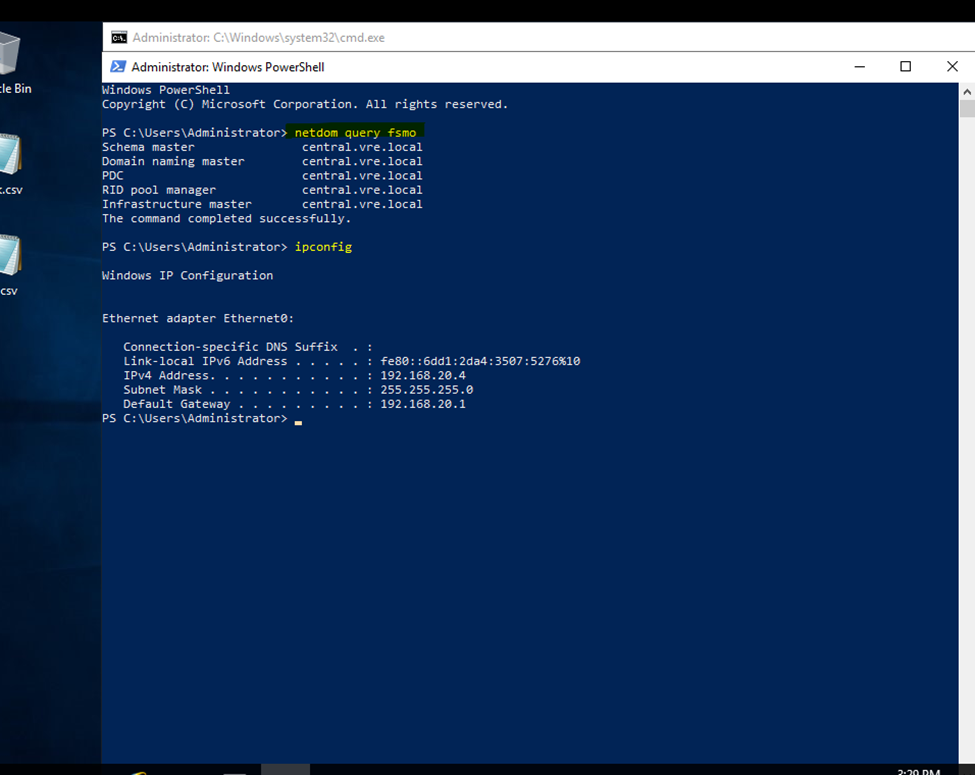
Secondary server will also getting same roles but secondary server not having complete authority like Primary DC
If Primary Server having issues need to seize the fsmo roles after that Backup DC will retain complete authority
So, here I used to power off Primary Server
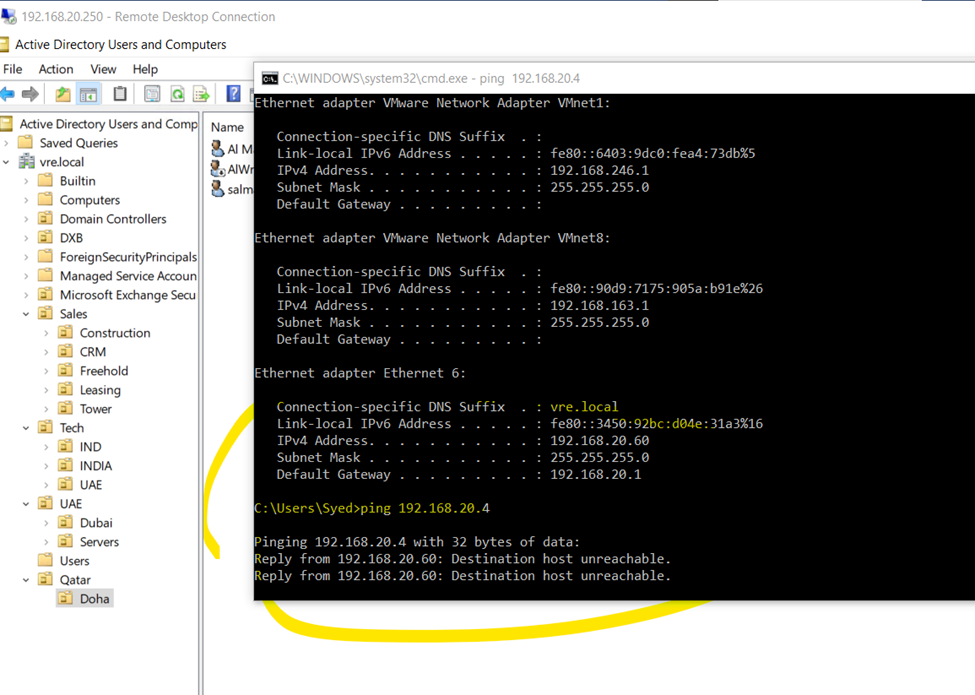
Primary DC is not active (Server Down)
Now type in PowerShell
But still, I will get all 5 FSMO roles
In secondary server I am getting all 5 Roles
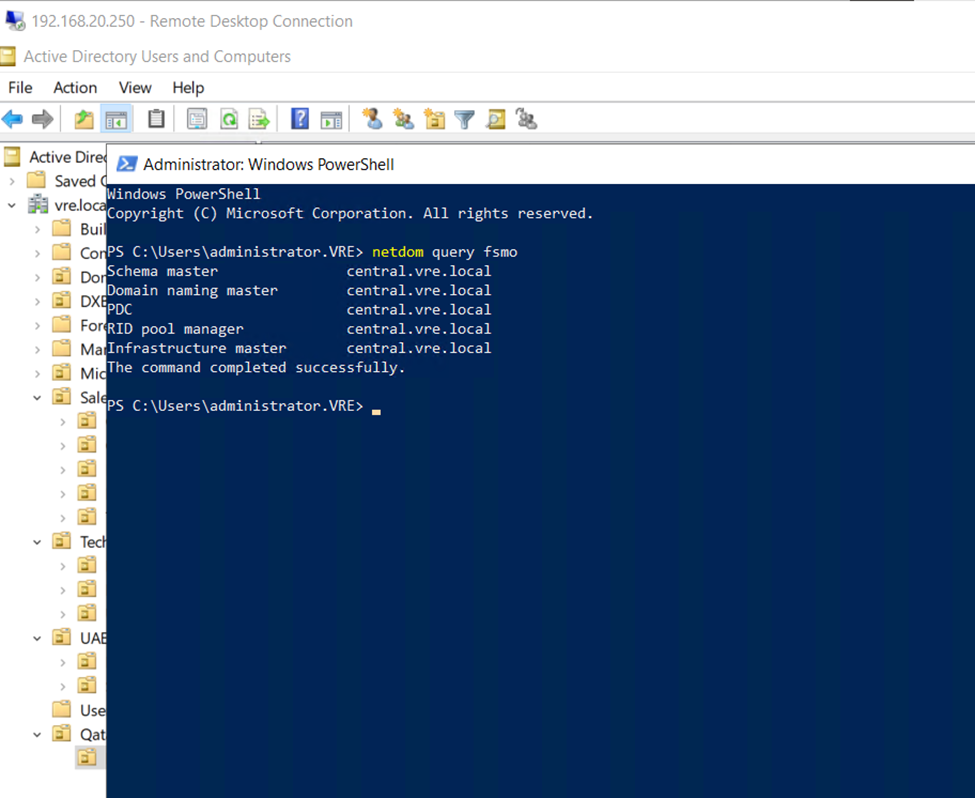
Type
In Backup DC
Ntdsutil
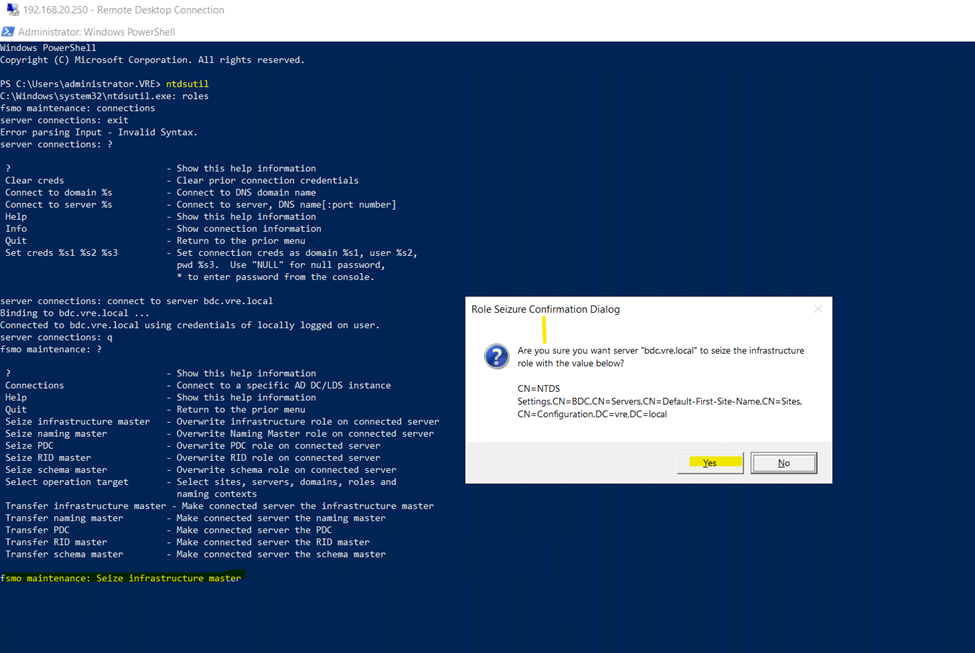
PS C:\Users\administrator.VRE> ntdsutil
Just type only roles and press enter
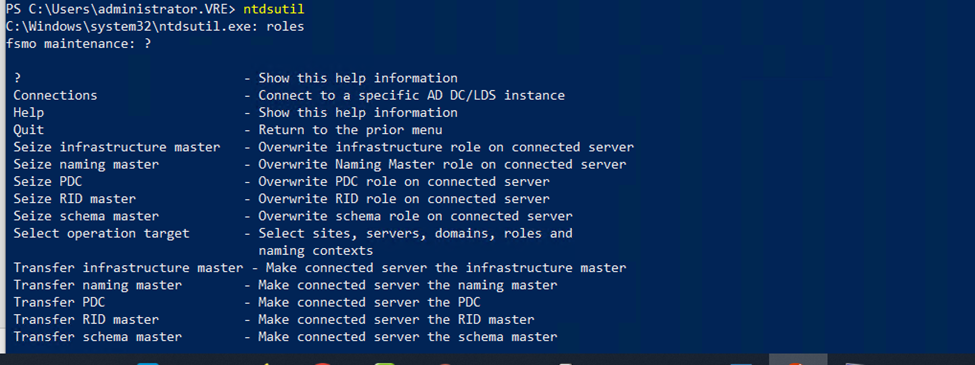
Type connections
Now need to connect to in backup Domain Controller like—
Connect to server bdc.vre.local

Now quit from connection press type q and enter
Here we need to seize all fsmo roles from primary server
Primary server is not running but fsmo roles with primary server need to seize the roles and allocate to secondary server
netdom query fsmo
fsmo maintenance: Seize infrastructure master
And press
Yes
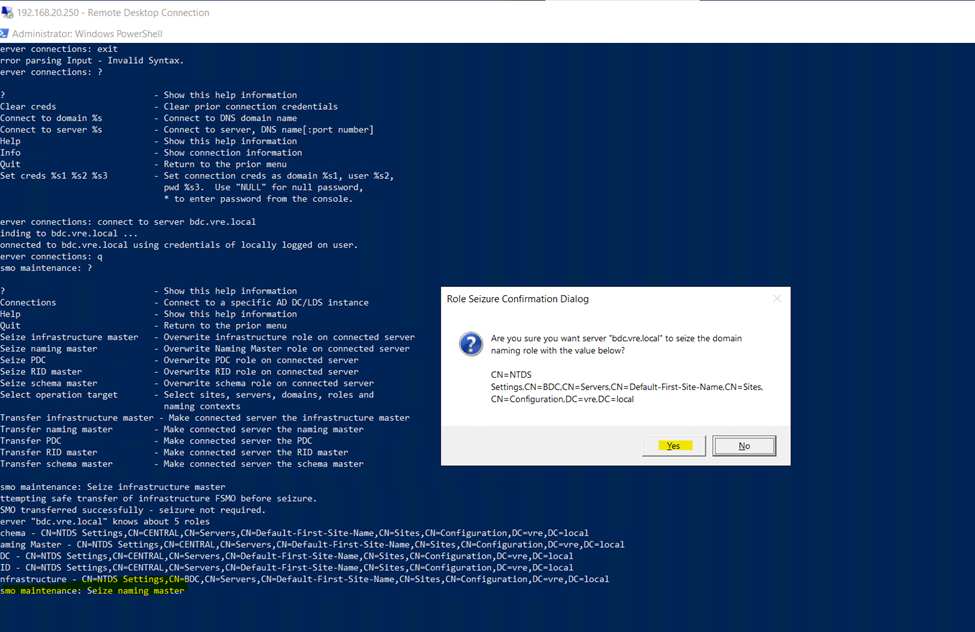
fsmo maintenance: Seize naming master
fsmo maintenance: Seize PDC
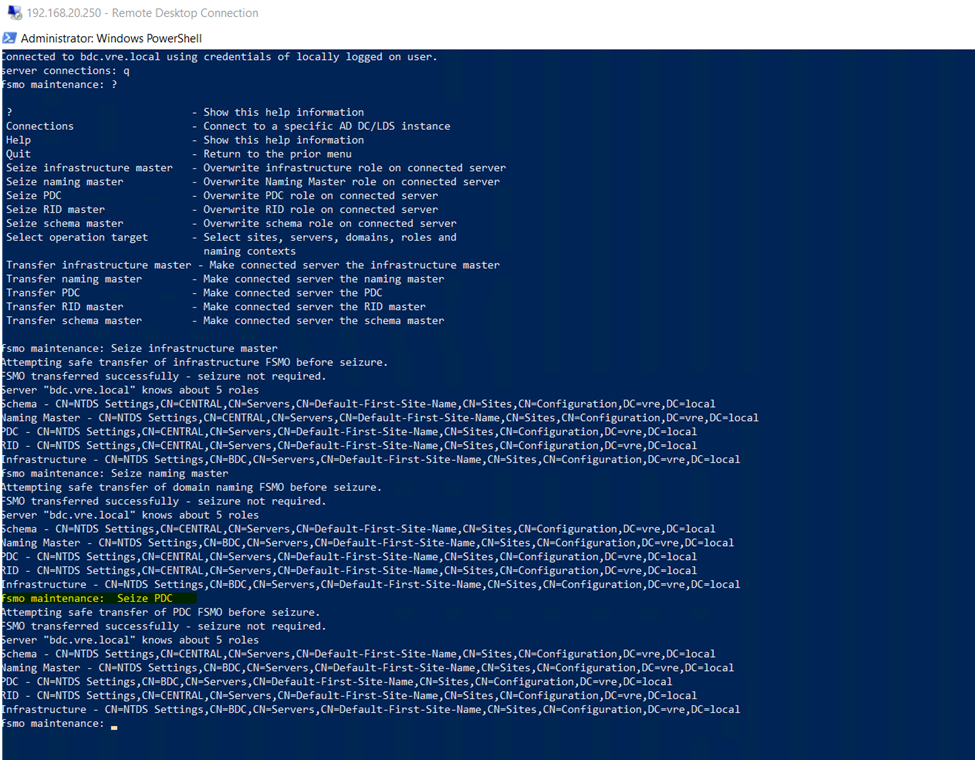
Seize RID master
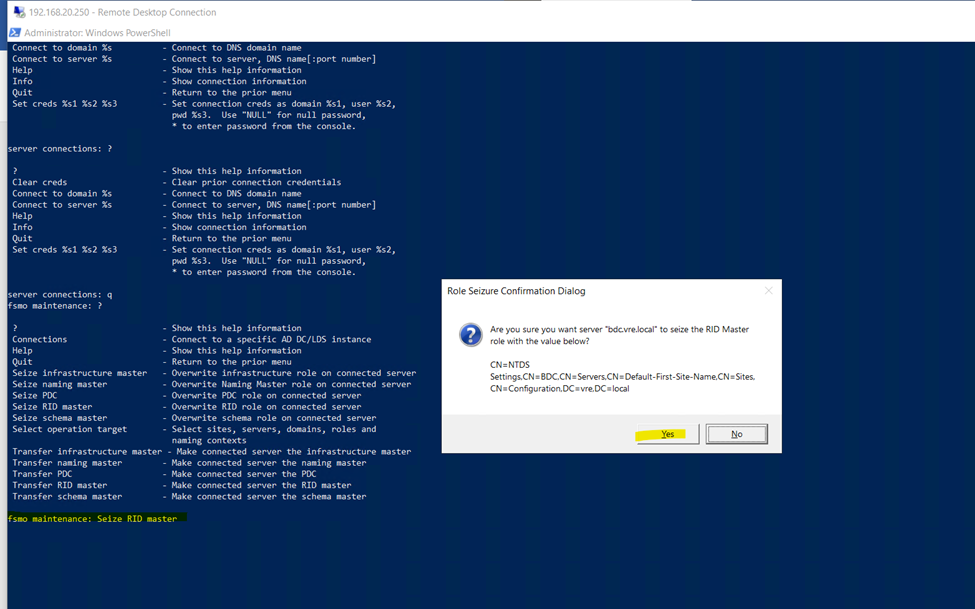
Seize schema master
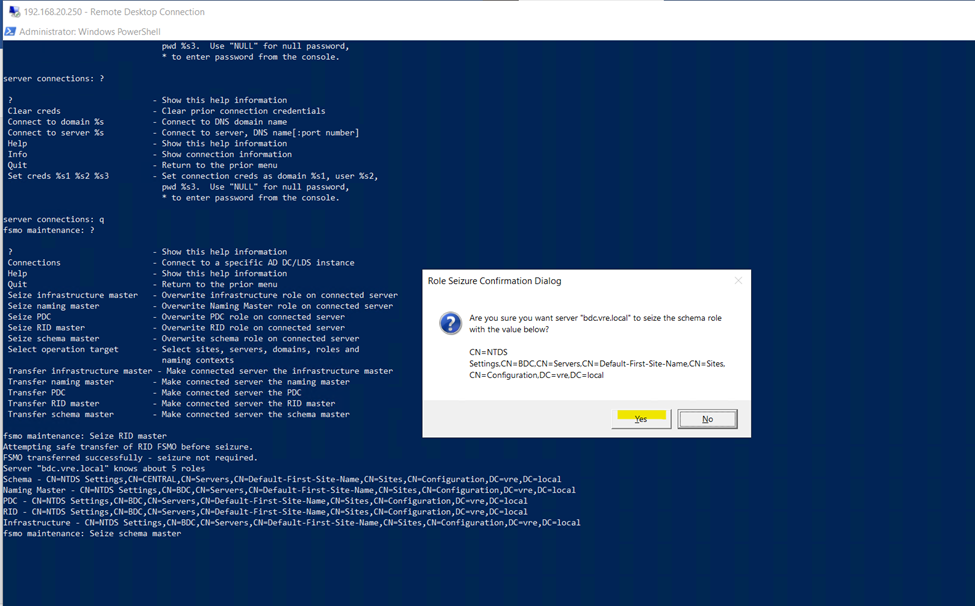
Now type quit
And quite from fsmo maintenance
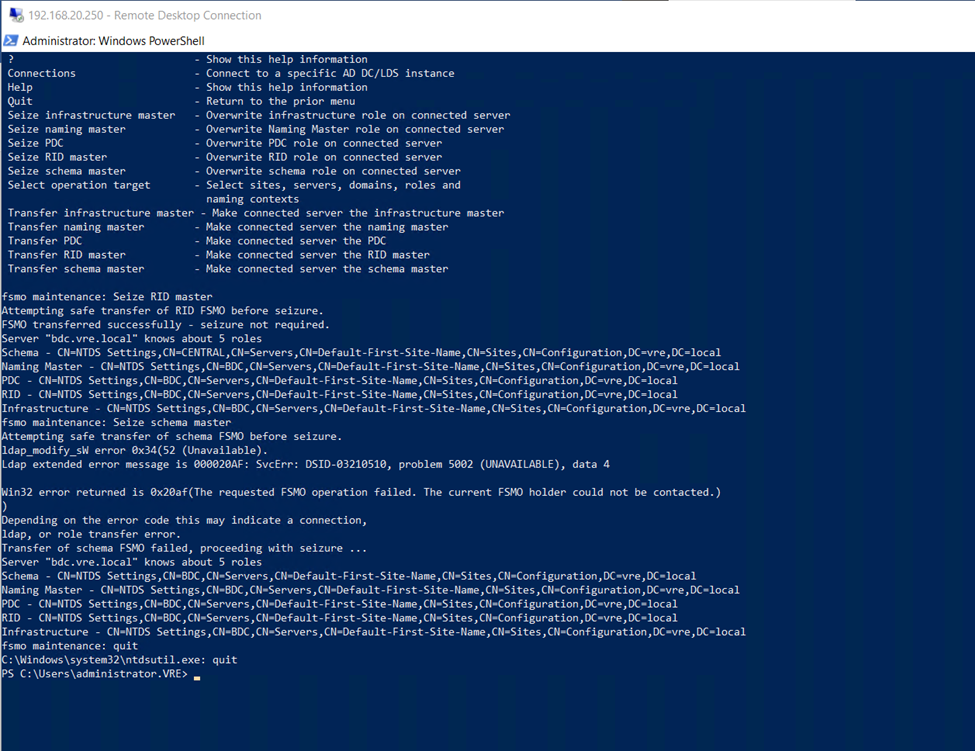
So, after seize all 5 roles from Primary DC and assign to Secondary dc
If you can check after seize all roles
Now Backup domain having all fsmo roles
netdom query fsmo
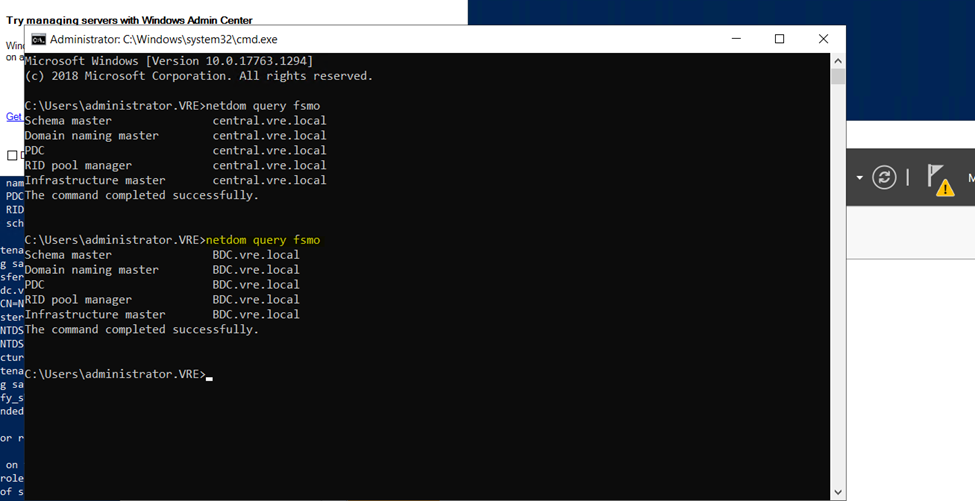
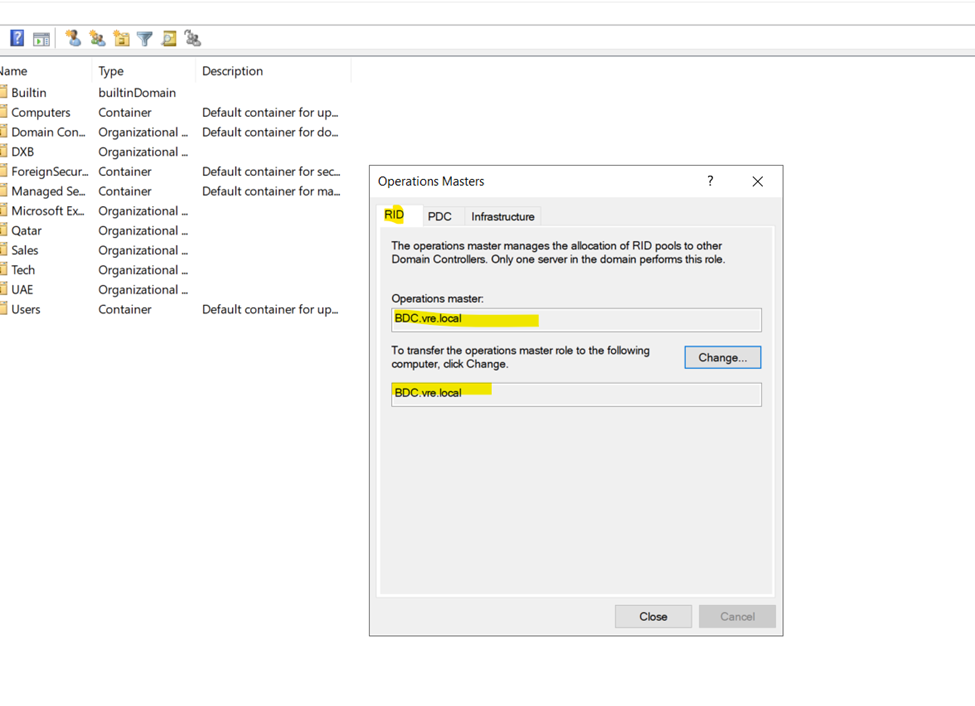
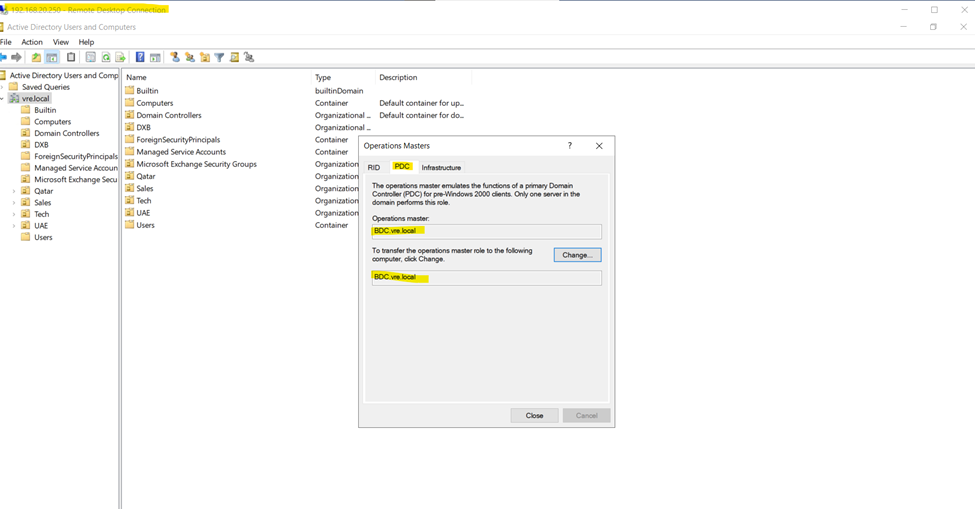
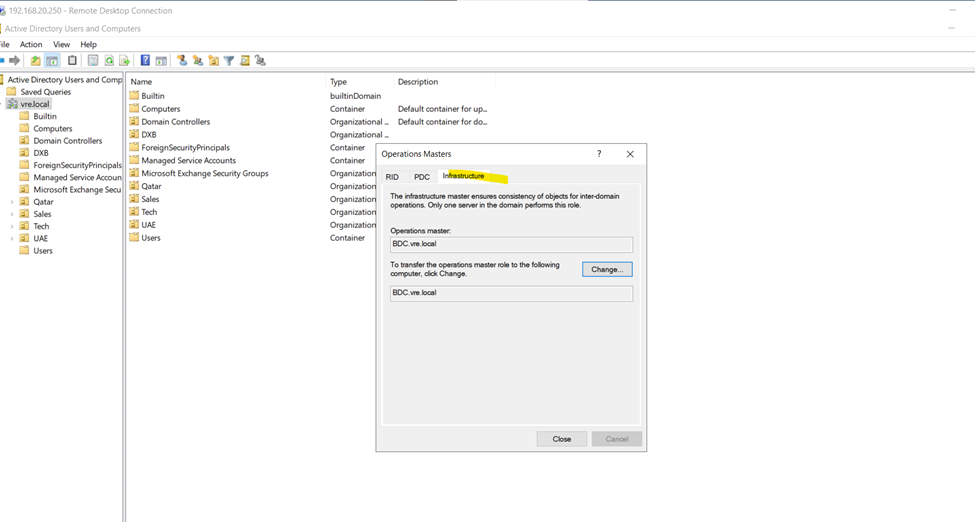
Go to Active Directory users and computers
Right click on domain and click on operation masters
Now, check there
PDC
Infrastructure
Comments
Post a Comment